Marketing emails
Send your news, and a few friendly emails that go by themselves, in your website's look. They go to the families who said yes to your news, and to the recent ones the law lets you write to. Each is filled in for the person it goes to, and has an Unsubscribe link at its foot.
Turning it on
In Settings, Marketing says how many of your families and leads can get your emails today. Tap Turn on Marketing, and Marketing joins your menu. There's no address to give: your emails go through Caletan, with Caletan's mailing address in their footer, as the law asks for one.
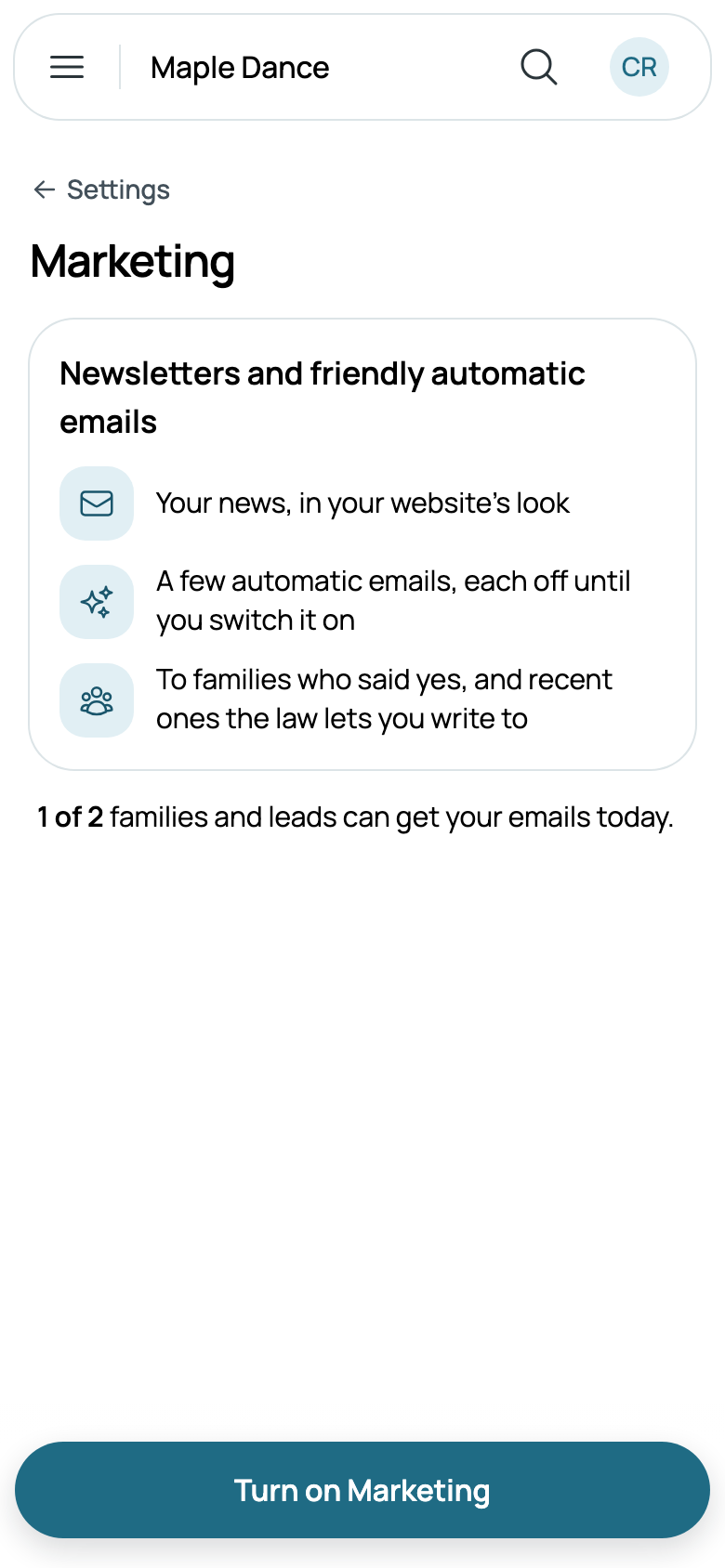
Who can get them is worked out each day: someone who said yes to your news, someone who bought from you in the last 2 years, or someone who asked about you in the last 6 months. Never a child, and never someone who unsubscribed.
Turning it off is in the same place, under More: scheduled emails go back to drafts and automations stop. Your words are kept for next time.
Your emails
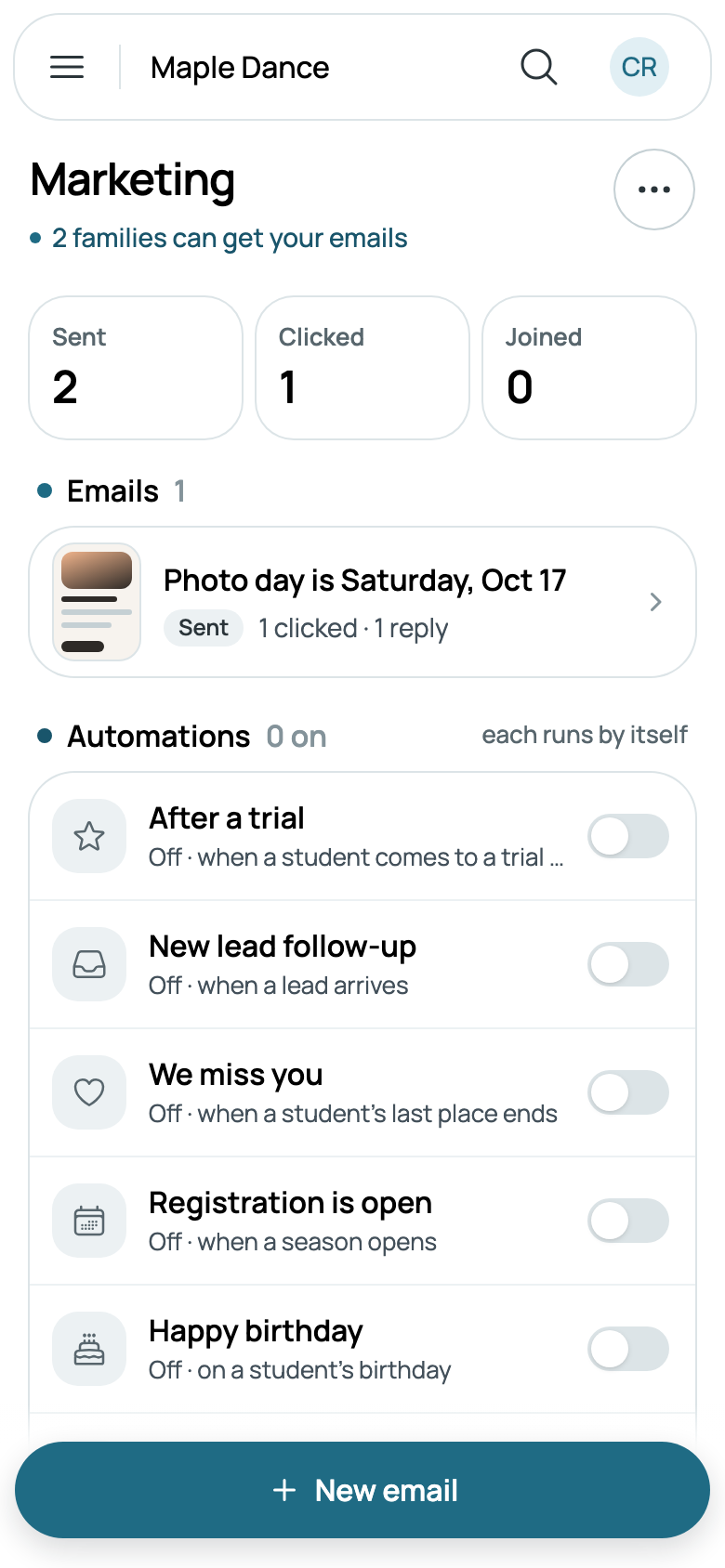
Marketing has this month in numbers: how many emails were sent, how many people clicked, and how many joined from your automations. Then your emails, those still to go first and then those sent, a page at a time, and your automations. Under the title, how many families can get your emails opens your audiences.
Writing an email
New email starts a draft to Current families, saved as you go. Tap who gets it to choose another audience: each says how many can get it, and how many can't. Edit message opens its words.
The message is a subject and blocks, one under another, between Your look, from your website, and the Footer, with your name, phone and website. A new email starts with "Hi" and the person's first name. That name is a field, shown as a pill: each family gets their own, and "there" when you don't have it. Field puts one in the subject, a heading or your words: a first name, a student's first name or your business's name.
Add a block adds a heading, more words, with bold, italics and links, a photo from your phone or computer, a button to an address, a divider, or A class. A class is one of those on your website, found by its name: its card shows its day, time and price as they are now, and goes to its page.
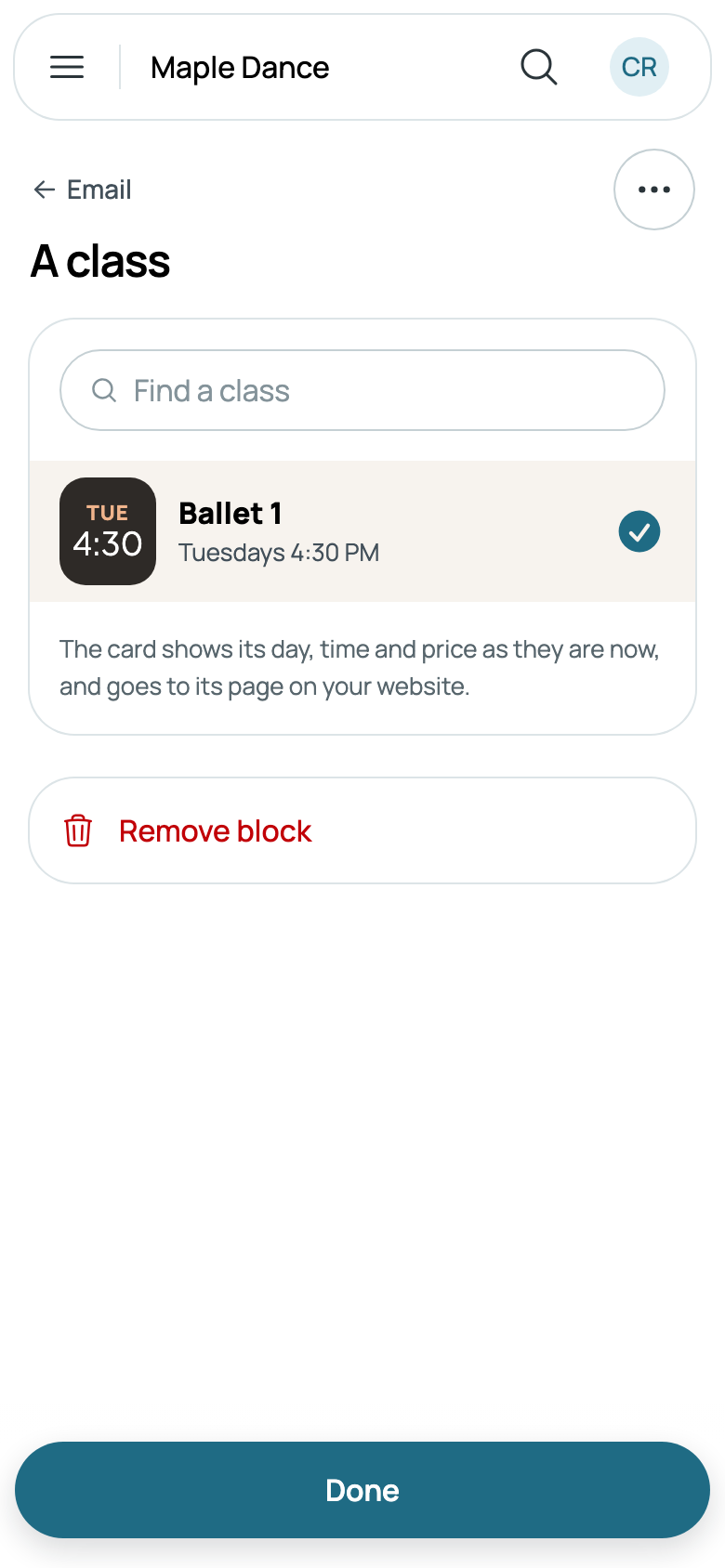
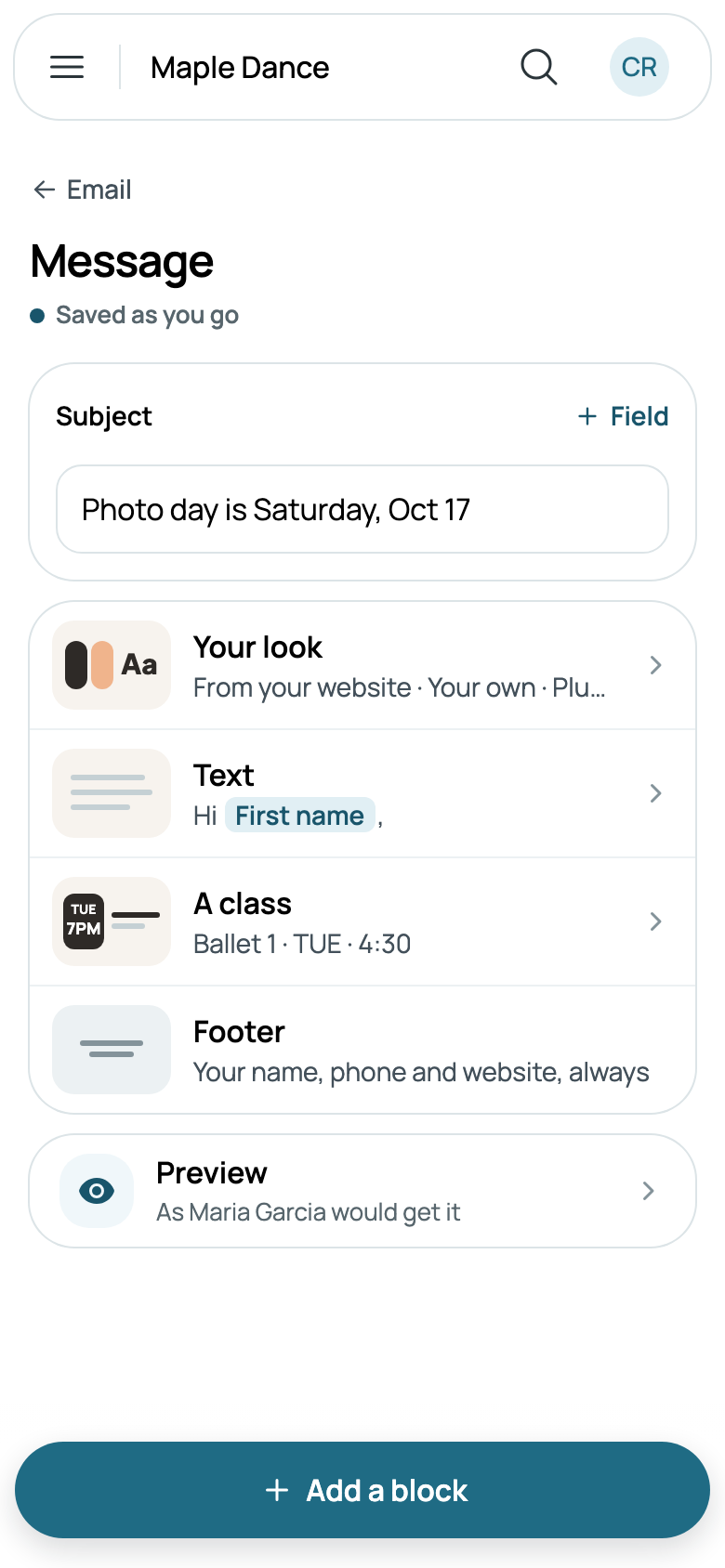
Tap a block to change it. Its More moves it up or down, Remove block is at its foot, and Done goes back to the email.
Preview and a test
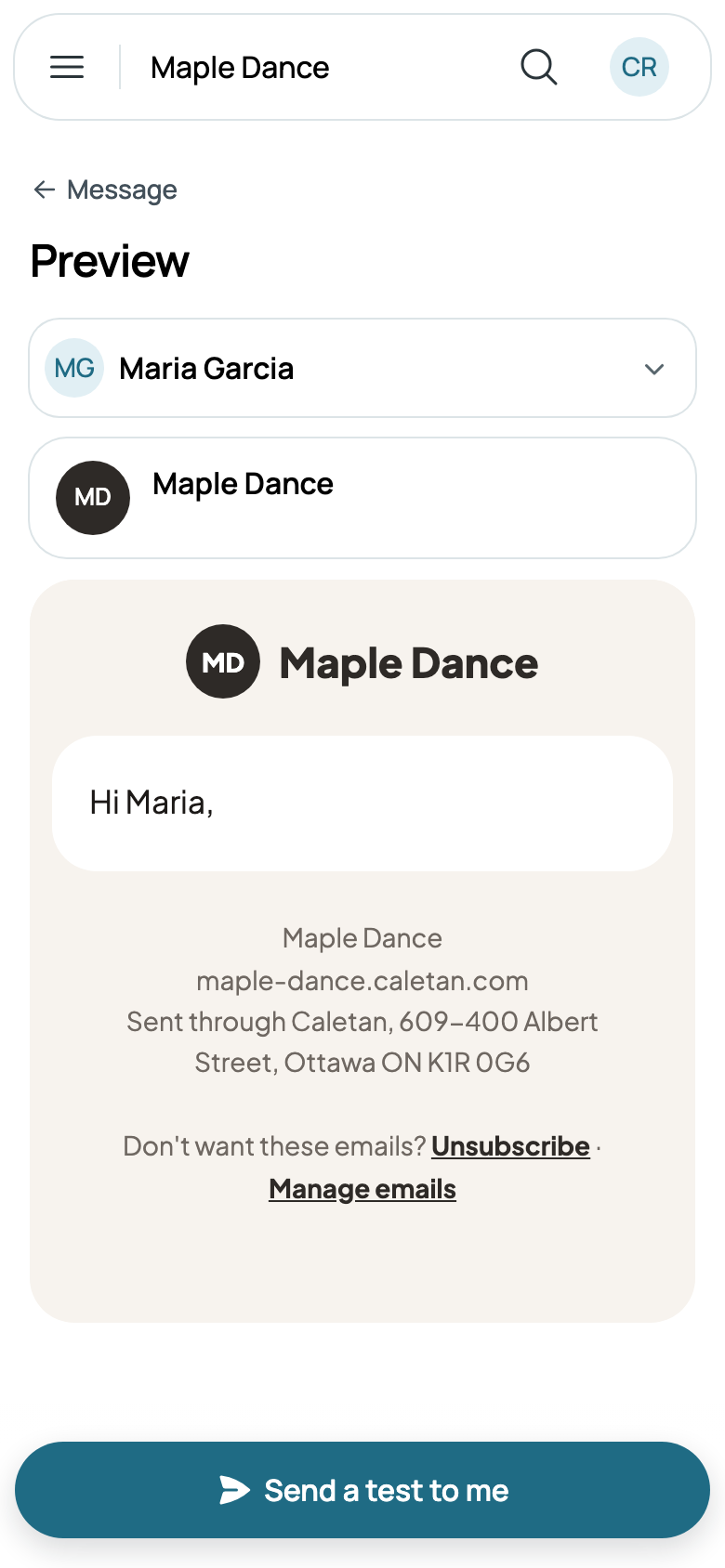
Preview shows the email as someone it goes to gets it, filled in from their own records: tap their name to see it as anyone else it goes to. Nothing is sent. Send a test to me emails it to you, filled in as you. On a computer, the preview sits beside the blocks and follows each change.
Sending it
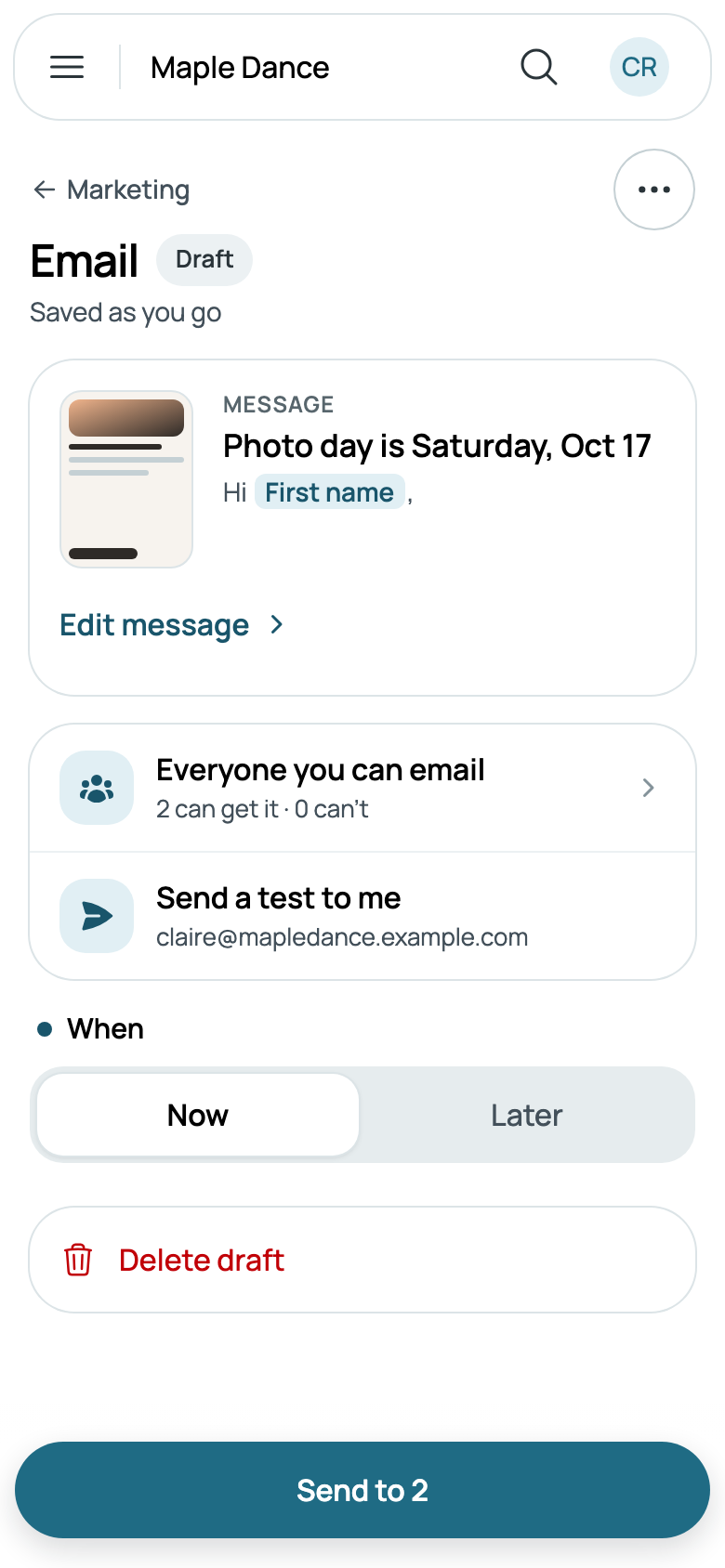
Back on the email, When is Now or Later. Send to, with how many it goes to, asks first, saying how long it takes to go out: about a thousand an hour. Later starts tomorrow at 9:00 AM; tap the time to pick another, on your business's clock, and Schedule for asks first. A scheduled email goes to its audience as it is then, and until it goes, it can still change, or go Back to a draft.
With your texting number, Also by text sends it as a text too, in its own few words, to those who said yes to news by text. Texts go from 9 AM to 8 PM, and at most 4 a month to anyone.
More has Duplicate, to copy a draft, and Delete draft is at its foot. A sent email stays, with its results.
What became of it
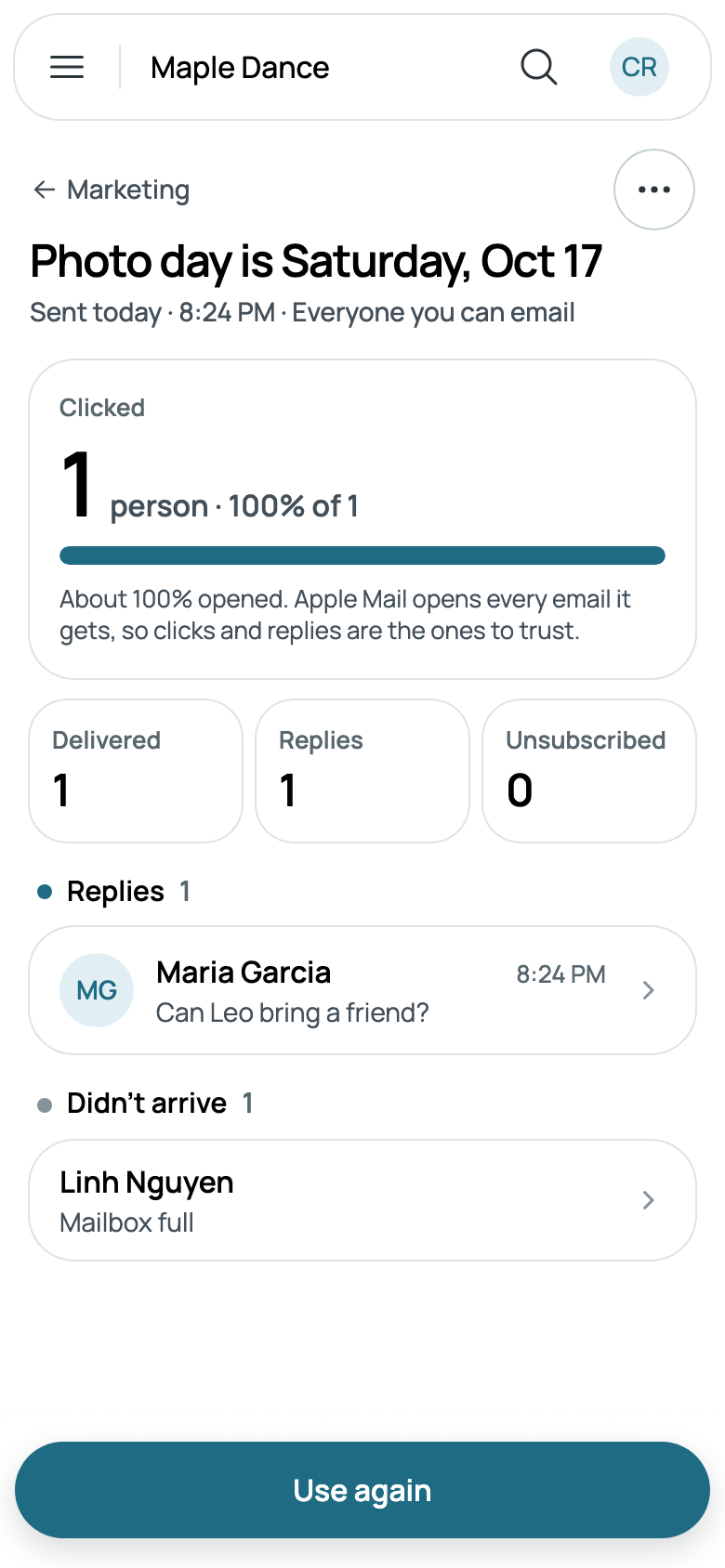
A sent email shows how many people clicked, how many it reached, its replies, who unsubscribed, and any that didn't arrive, with why. How many opened it is only an "about": Apple Mail opens every email it gets, so clicks and replies are the ones to trust. A reply opens its conversation in Messages, where it landed. More has Most clicked links and Who unsubscribed, and Use again starts a new draft from it.
Automations
Six automations are ready, each with its emails written, and each off until you switch it on, right on Marketing:
- After a trial: a student comes to a trial class.
- New lead follow-up: someone new asks about you, from the website, an email, a call or a walk-in.
- We miss you: a student's last place ends, with no other class left.
- Registration is open: a season's registration opens, to families from the season before who haven't registered.
- Happy birthday: a student's birthday, just a happy birthday, no offer.
- Haven't seen you: a student hasn't come for 3 weeks.
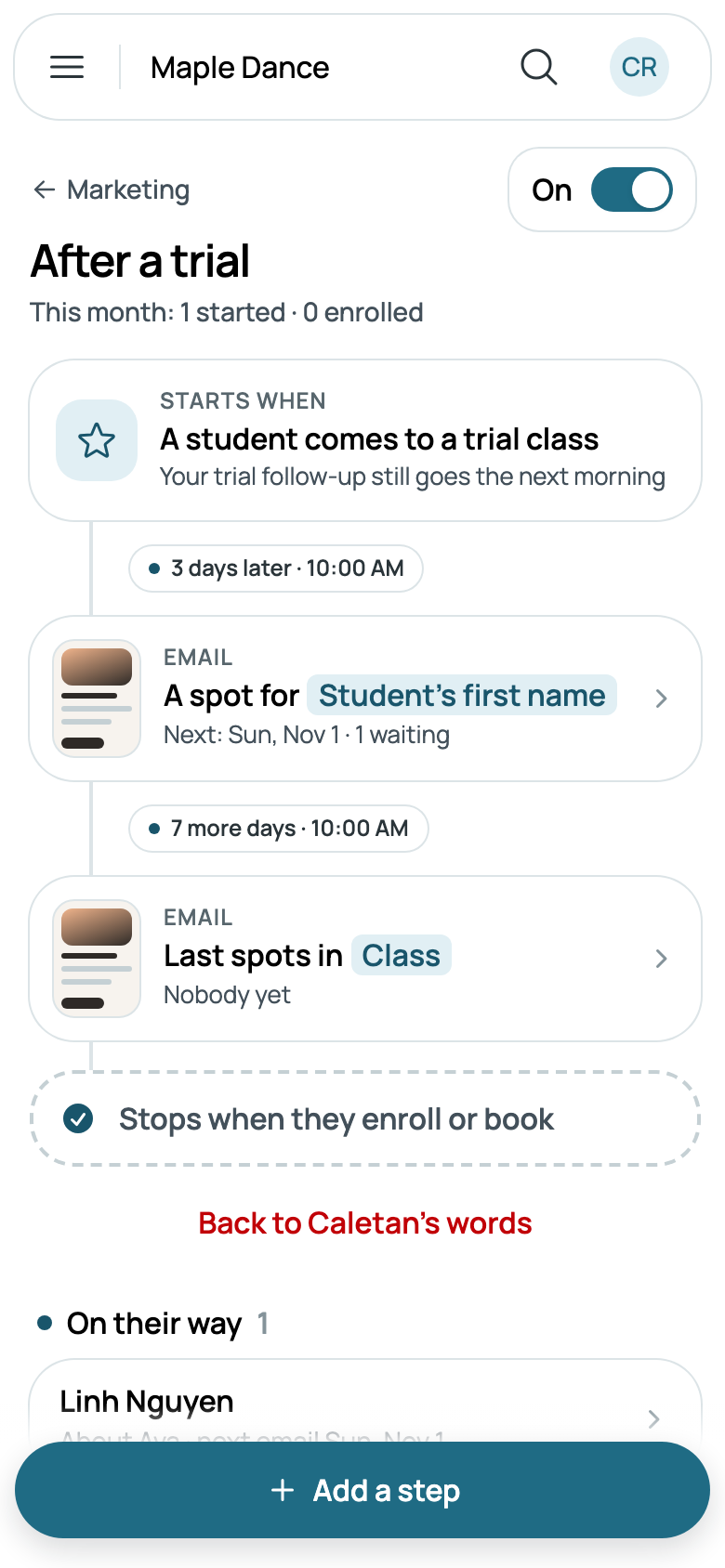
Each email goes at 10:00 AM on its day, and each stops once the person enrolls, registers, books or comes back; a new lead's also stops when they're marked Not now. Switched off, everyone's way through it ends.
Tap one for its emails, in a line: what starts it, each email with its days, and what stops it, then who's On their way, with their next email. Tap the days to change them; Add a step adds an email, up to three, and Remove this email is with the days. Each email opens in the same composer as your news. Back to Caletan's words puts back its words and days.
Audiences
Audiences, under More, are who your emails can go to. Four are ready to use: Everyone you can email, Current families, Families who left in the last year and Leads who haven't joined.
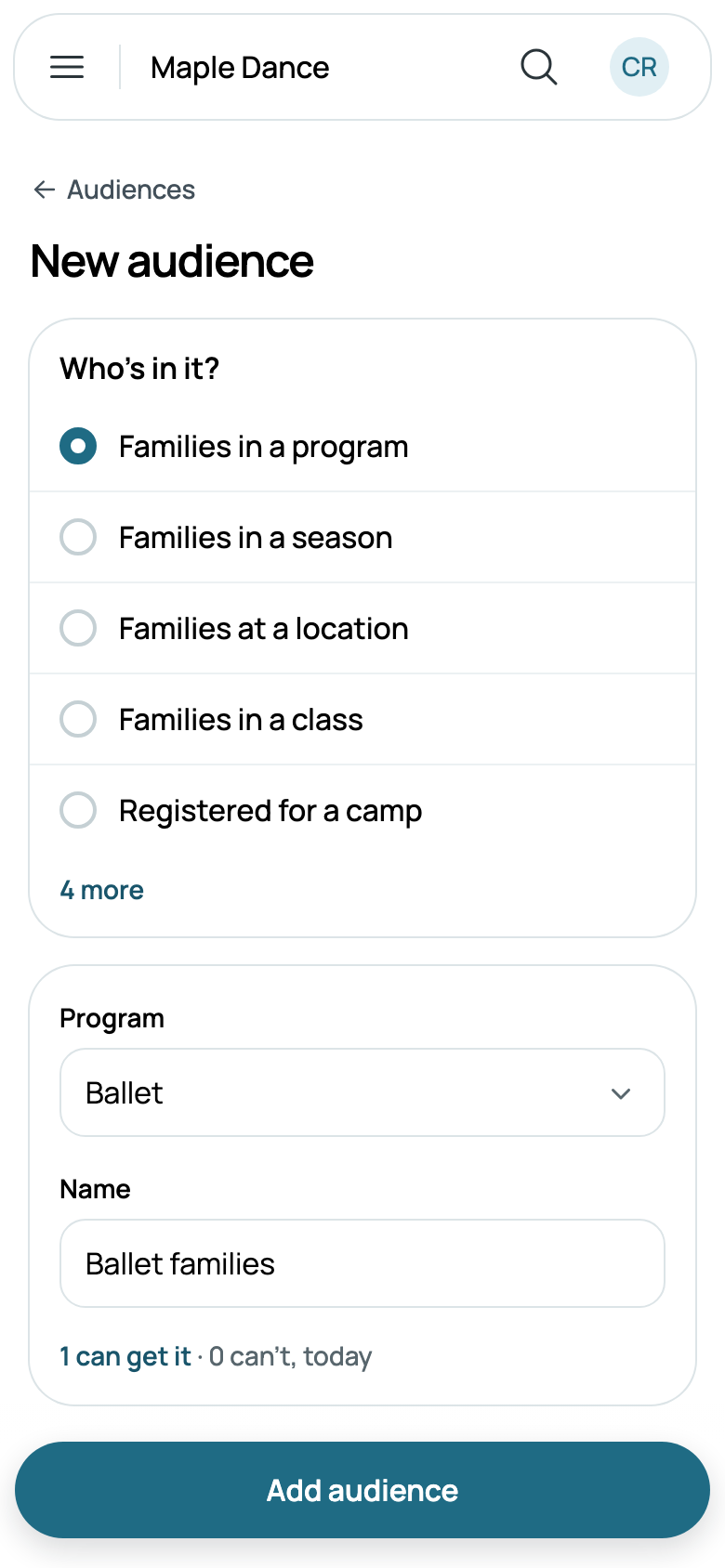
New audience makes your own: families in a program, a season, a class or at a location; those registered for a camp, who booked a lesson or service, or bought tickets for an event; adults taking part themselves; or leads, by where they stand. It's named for what you choose, such as Ballet families, which you can change, and says how many can get it today. Who's in it is worked out each time an email goes. Delete audience is at its foot; emails already sent to it keep their results.
Who unsubscribed, and pausing
More, then Who unsubscribed, lists everyone who said no to your news by email, the latest first, each opening their family. They get no news or offers from you by email; receipts, reminders and messages still go.
Pause all marketing, under More, holds every marketing email until you Resume marketing, and receipts and messages still go. If people mark your emails as spam, or they keep not arriving, Caletan pauses your marketing and says why, and it resumes once we've looked at it with you.