Levels and skills
Track what each student learns. A program, such as Ballet, has levels, such as Grade 1 and Grade 2, and each level has the skills taught at it. Teachers mark each student's progress from their phone during class, and families see how far their child has come.
Start tracking skills
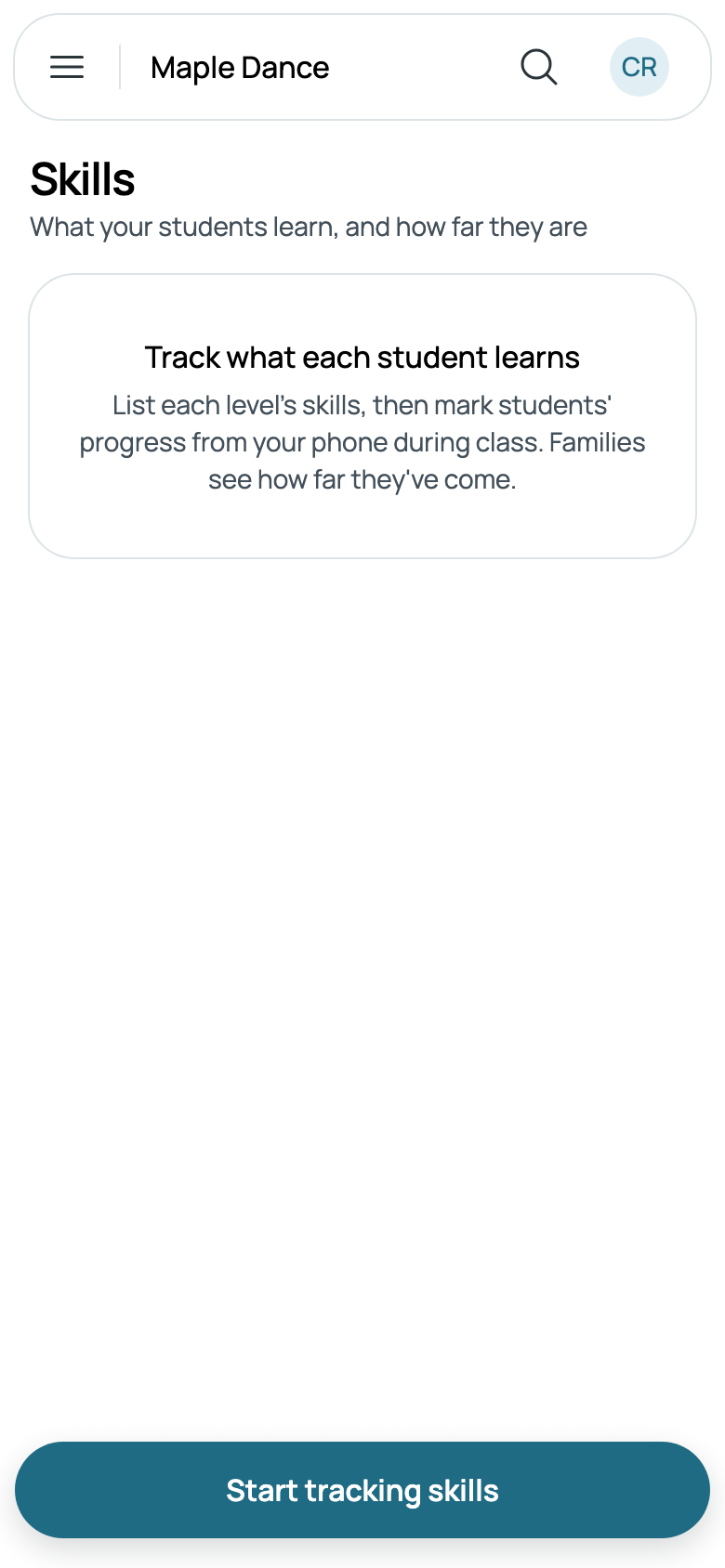
Skills, in the menu, says what it gives you. Someone who runs the business taps Start tracking skills, once.
Programs, levels and skills
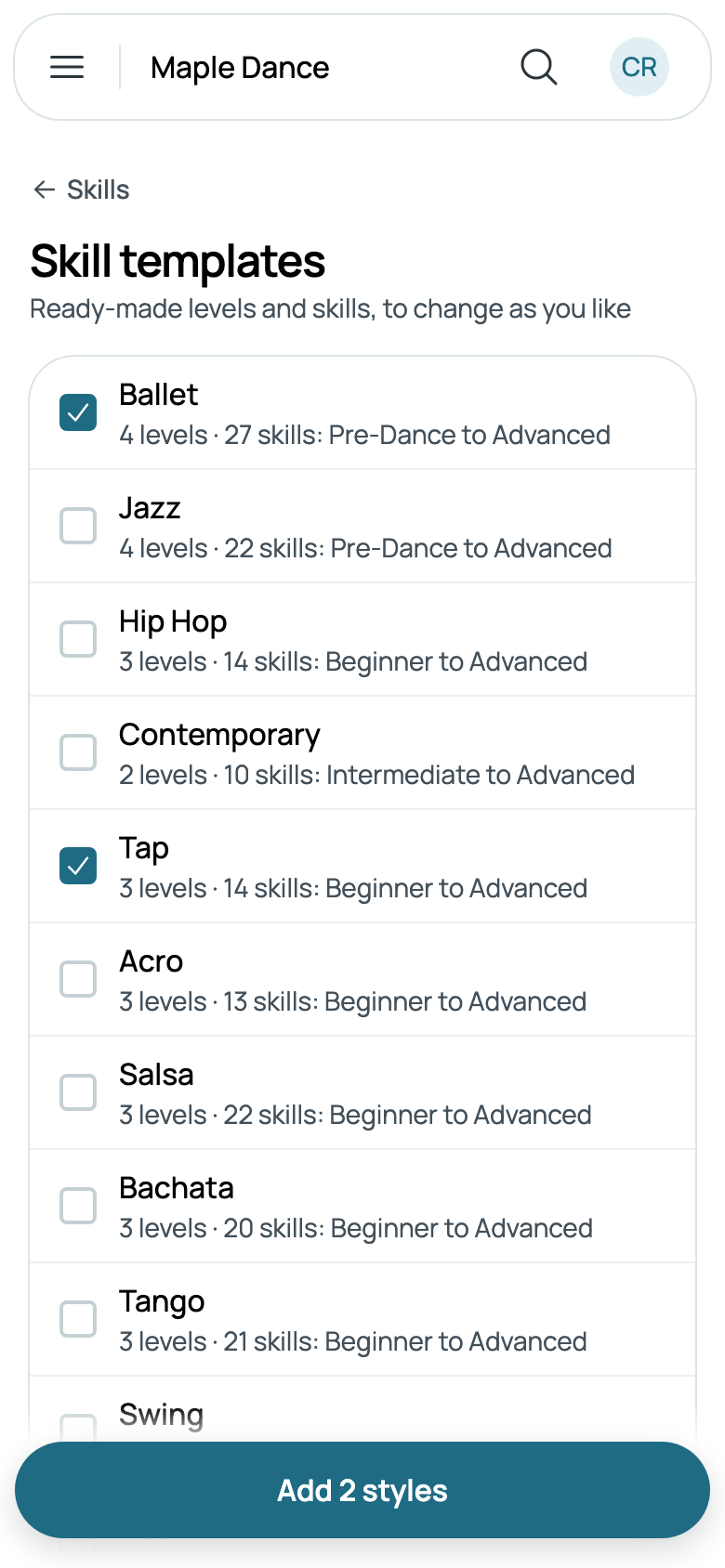
A dance studio can Start from a template: choose your styles, such as Ballet and Tap, and each comes with its levels and skills, to change as you like.
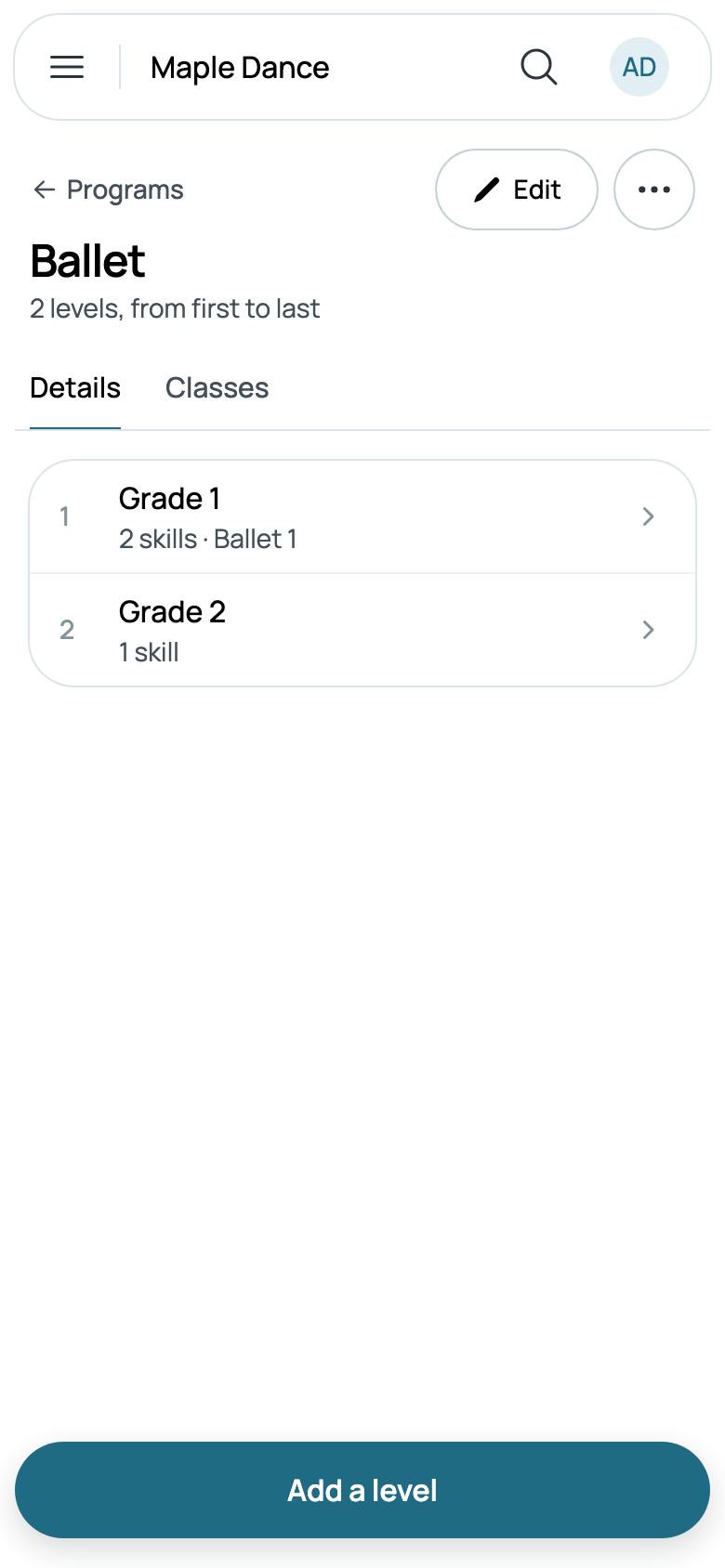
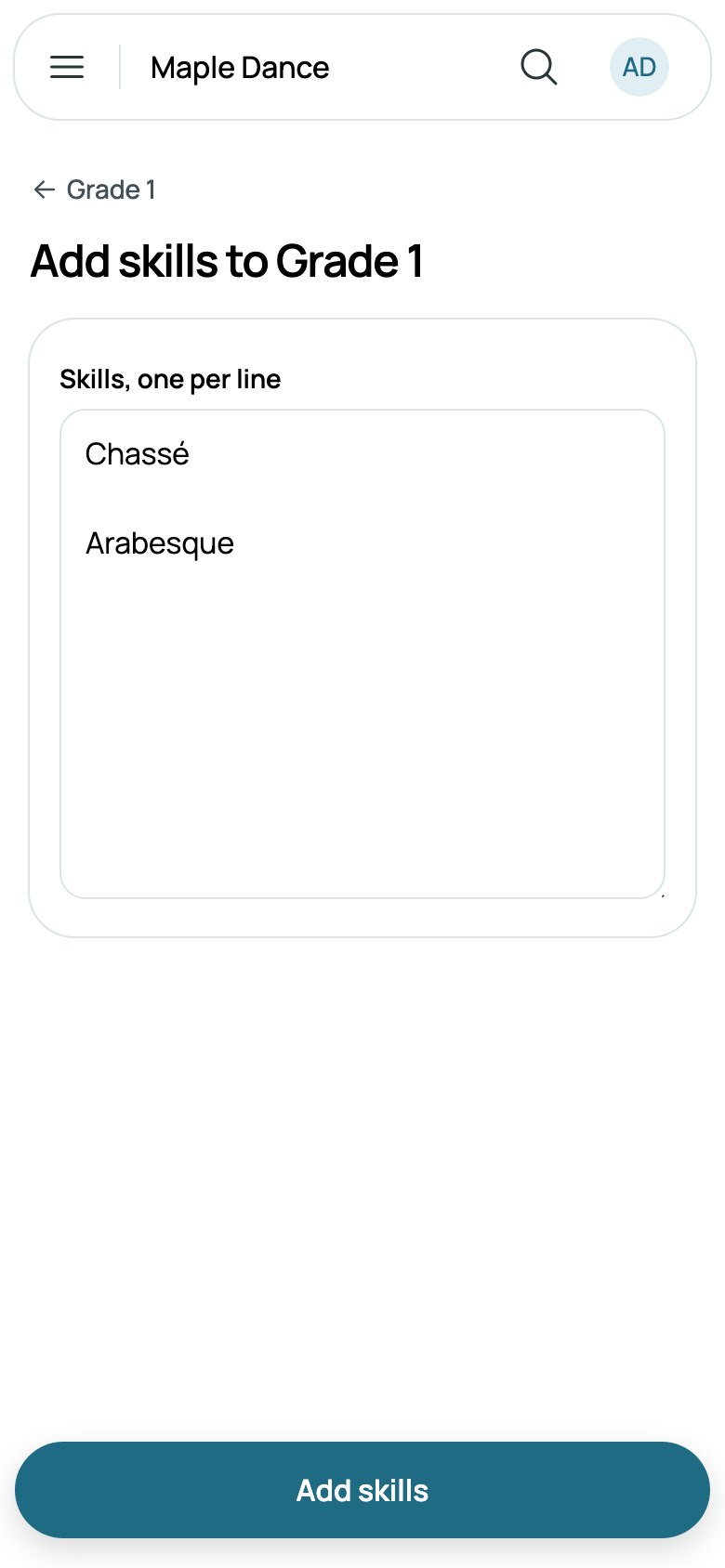
Otherwise, Add your first program, give it a name, then Add a level for each level students go through, from first to last. A level opens on its skills: Add skills adds one, or several, one per line, typed or pasted from your syllabus, onto the end.
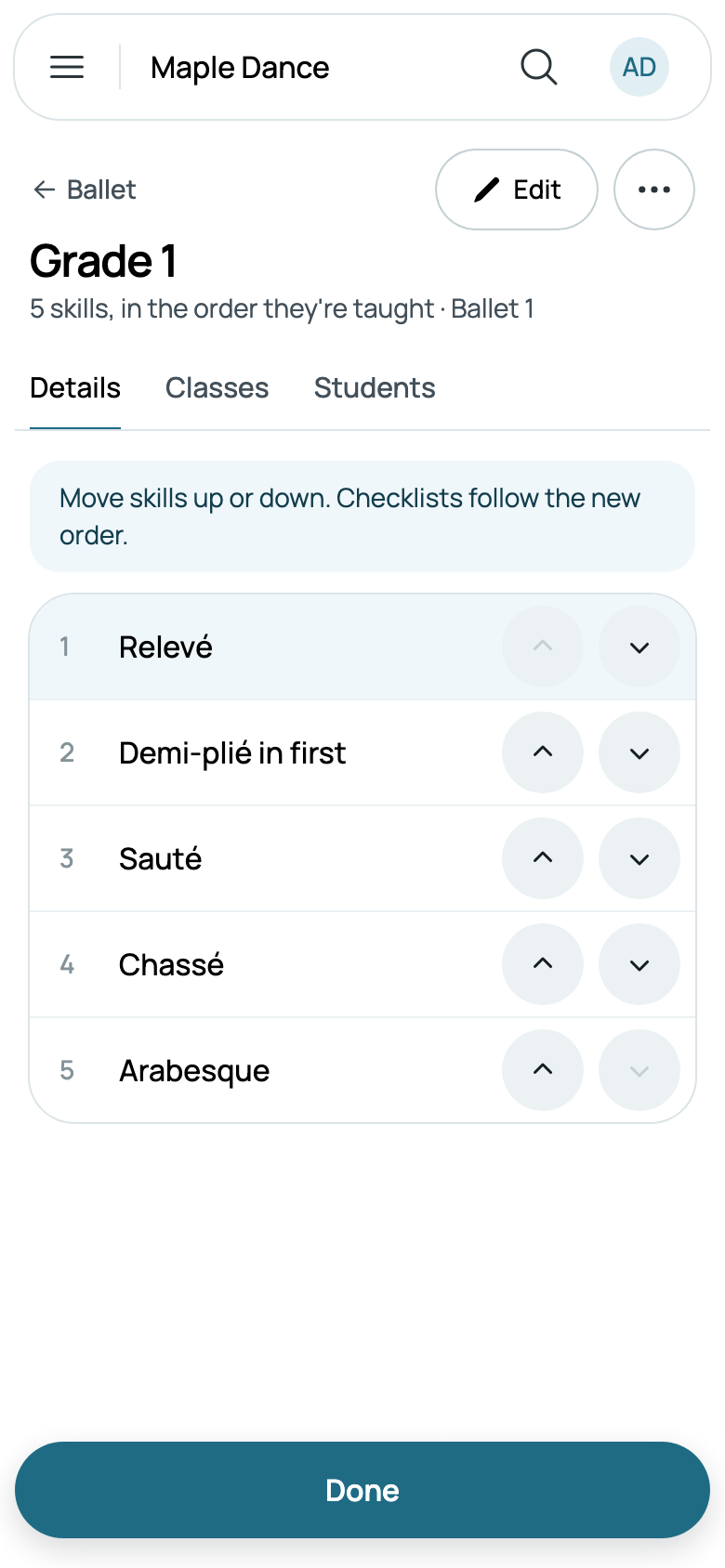
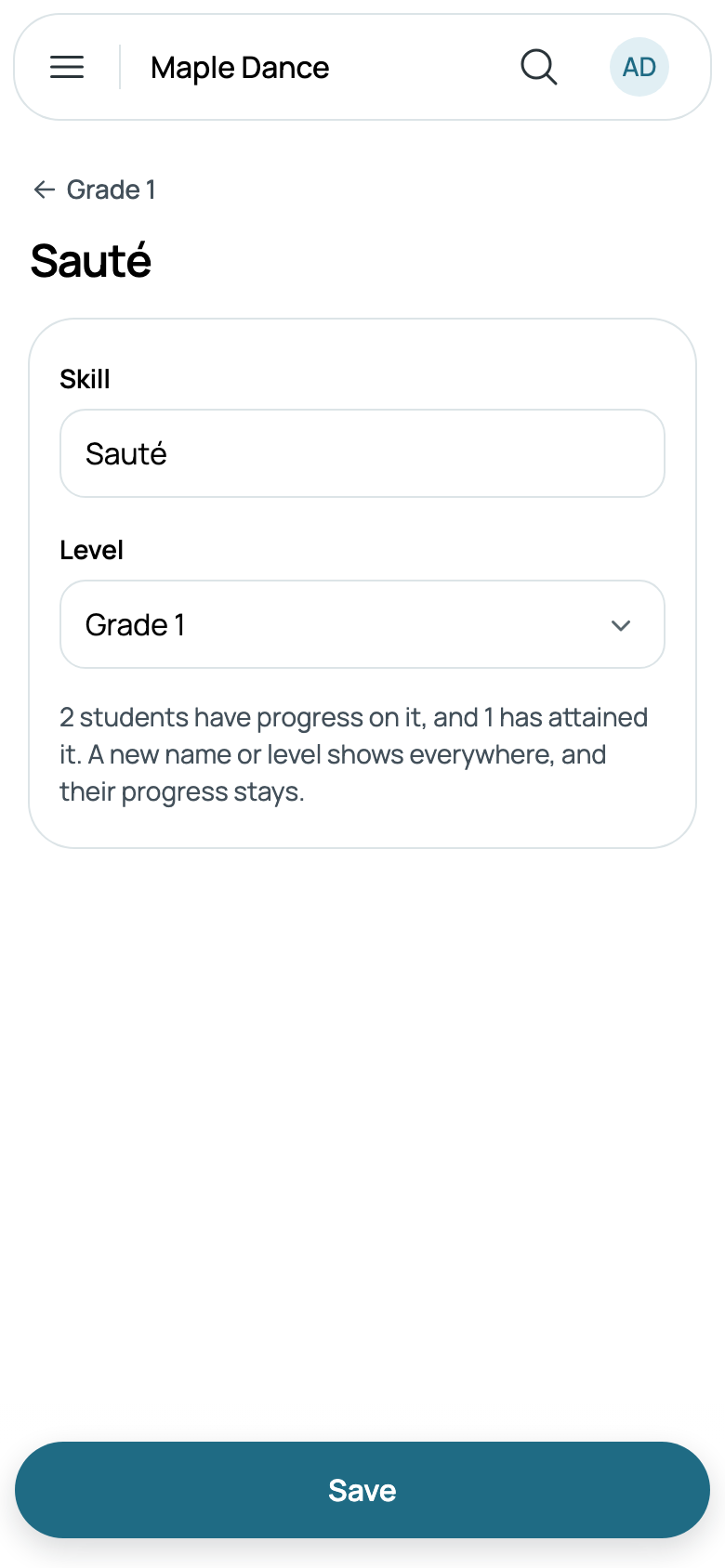
Reorder skills, under ⋯ on a level, moves each up or down a place, and checklists follow the new order; Reorder levels, on a program, does the same for its levels. Tap a skill to rename it or move it to another level: everyone's progress on it stays.
A level such as Adult Open, which a class of any program can take, is under Levels in every program, in Programs.
Teachers keep levels and skills up too, and only those who run the business delete them: a skill at the foot of its page, a level or a program at the foot of its Edit. Each says first who it touches: their progress on it goes, comments about a skill stay, and a level's classes carry on with no level.
Skill steps
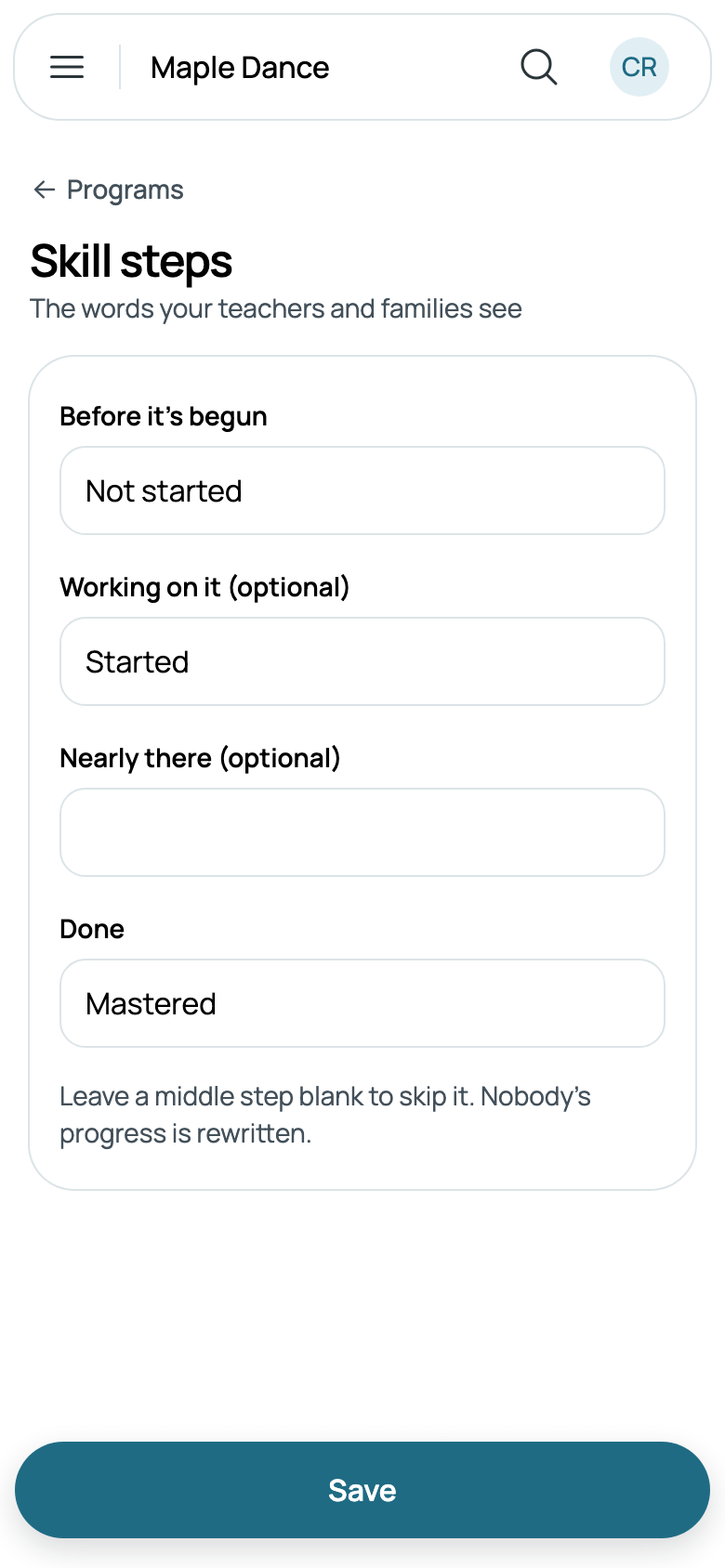
Each skill goes through four steps: Not started, Started, Tested and Attained. Programs has Skill steps, to change the words your teachers and families see. Leave a middle step blank to skip it; nobody's progress is rewritten.
Each class's level
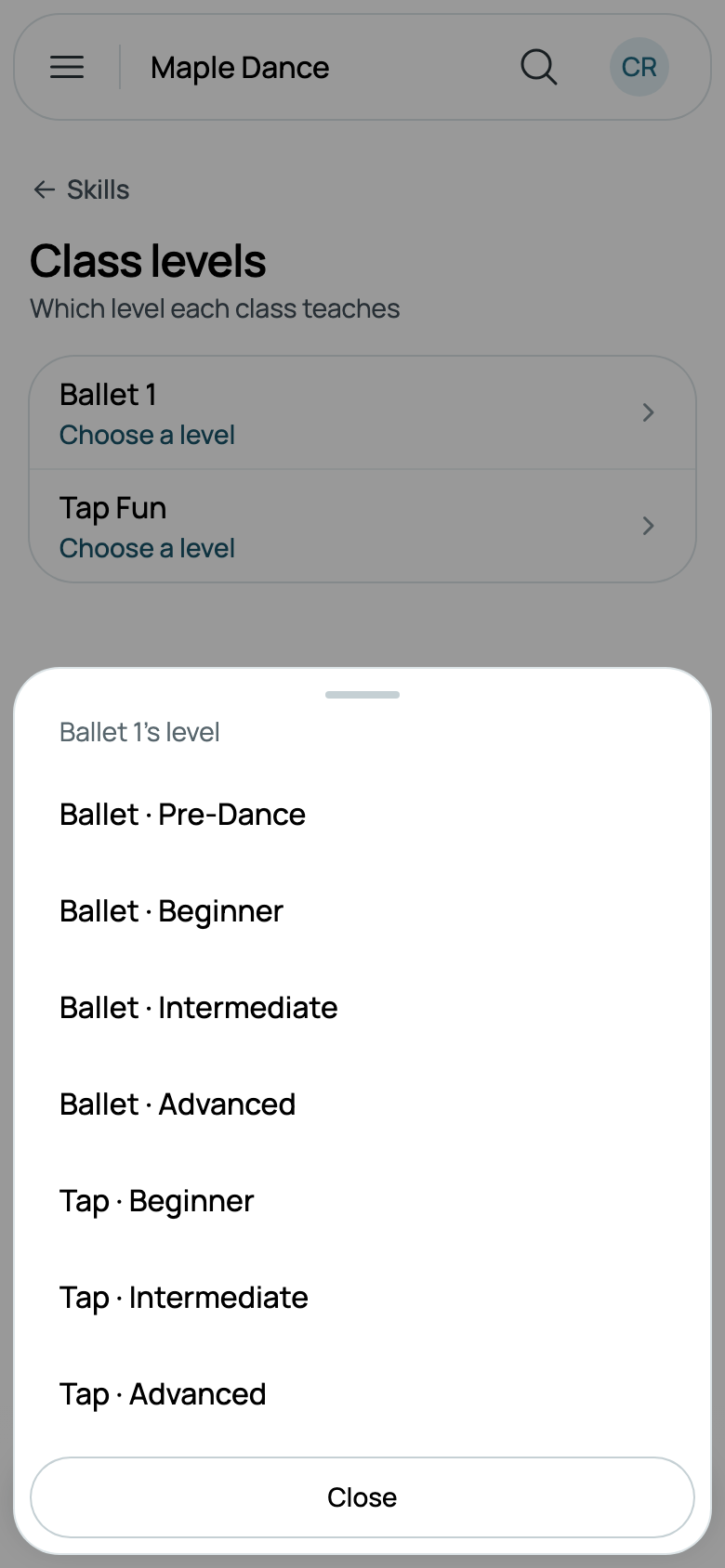
Once you have programs, Skills says what's next: Choose class levels lists every class, and a tap chooses the level it teaches, its own program's first. Each is saved as it's chosen, with Undo. A class's form has its Level too, under its program.
Assessing a class
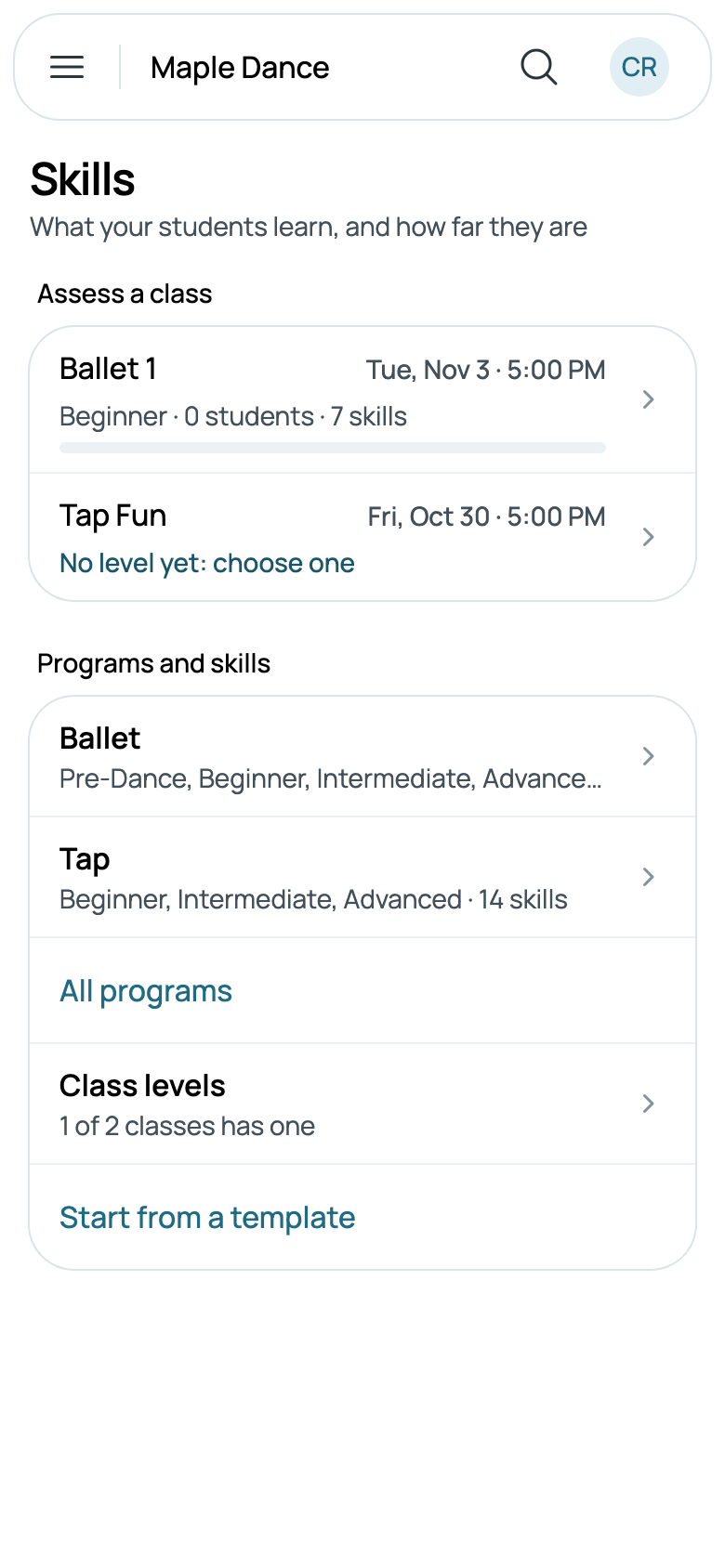
Skills then lists your classes to assess, your own first and Everyone's classes a tap away, each with its level, its students and skills, and how far they are between them. A class still without a level, or whose level has no skills yet, says so, and a tap goes where that's done.
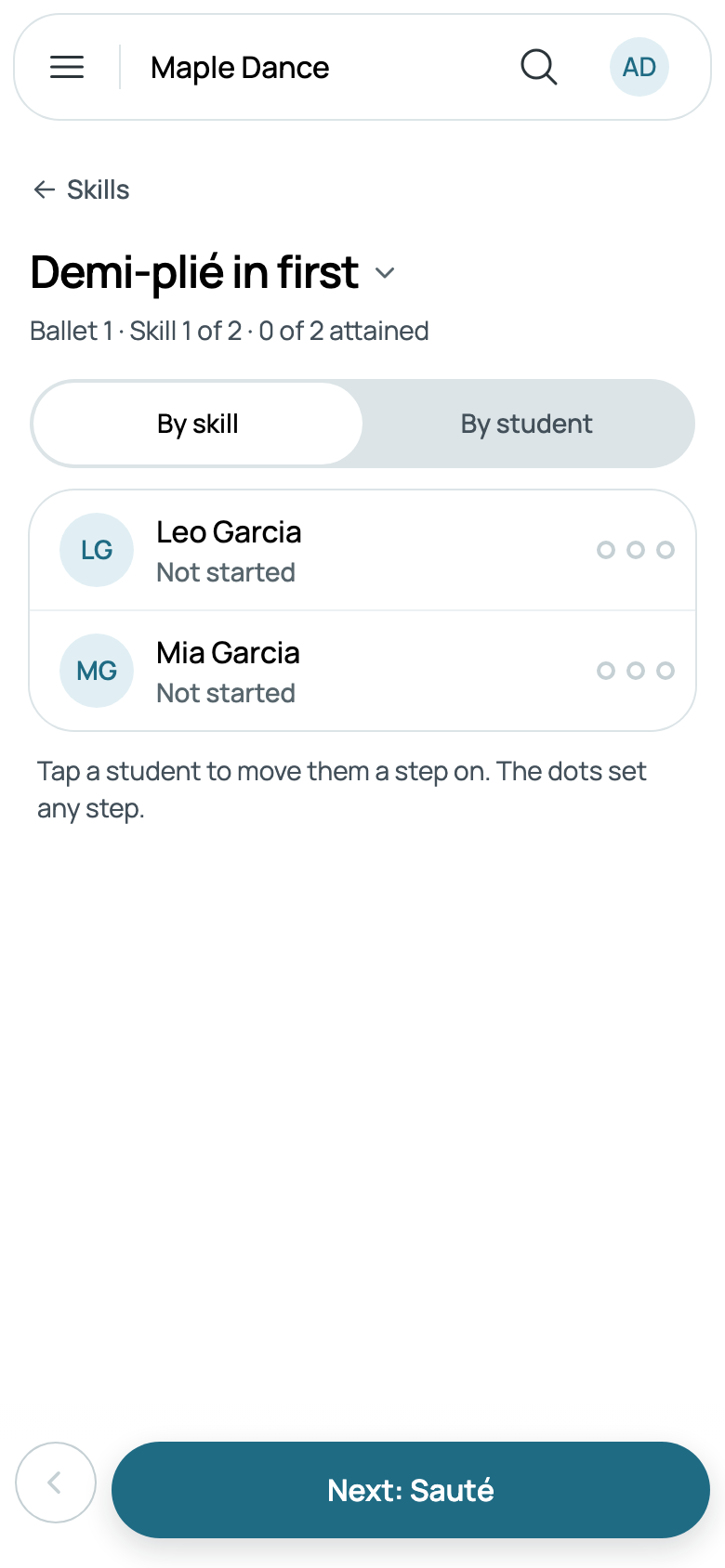
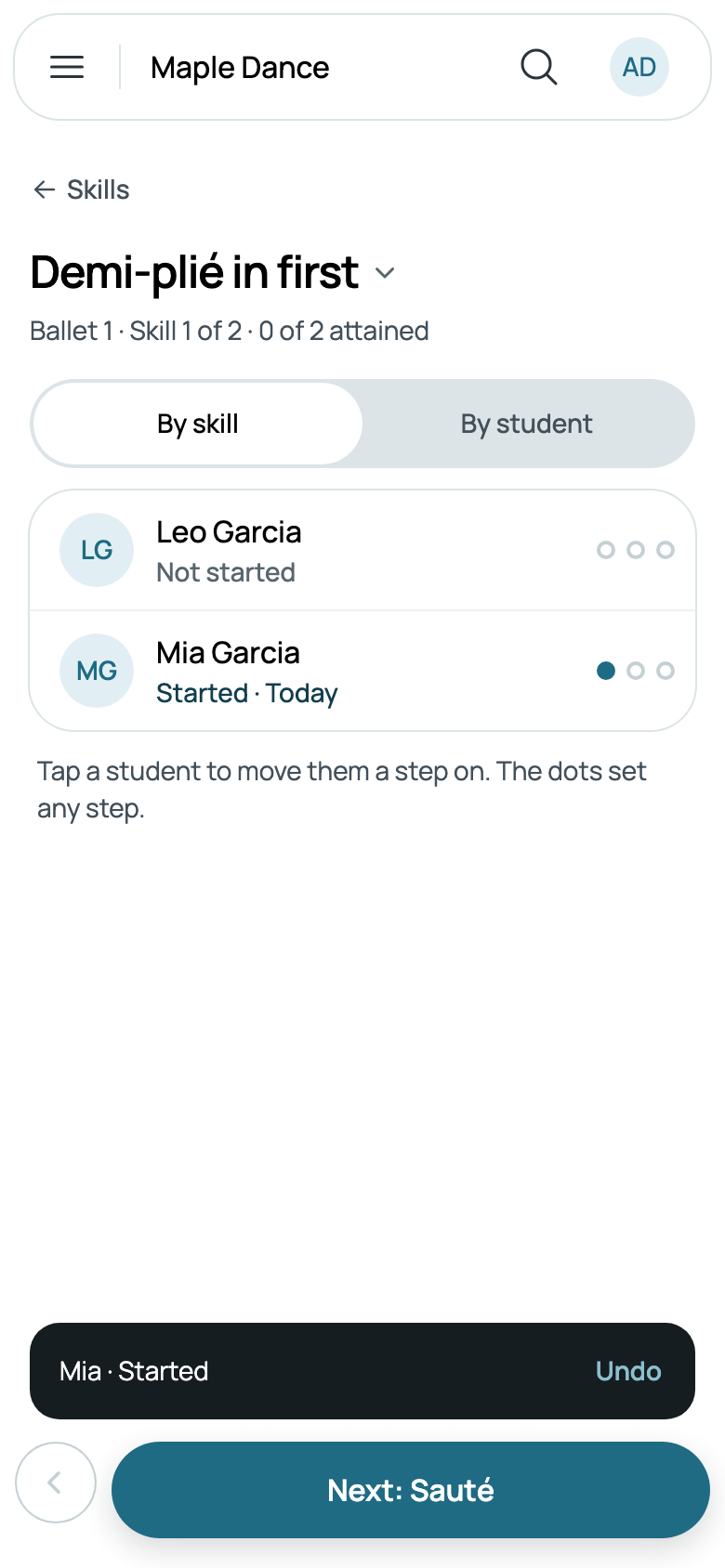
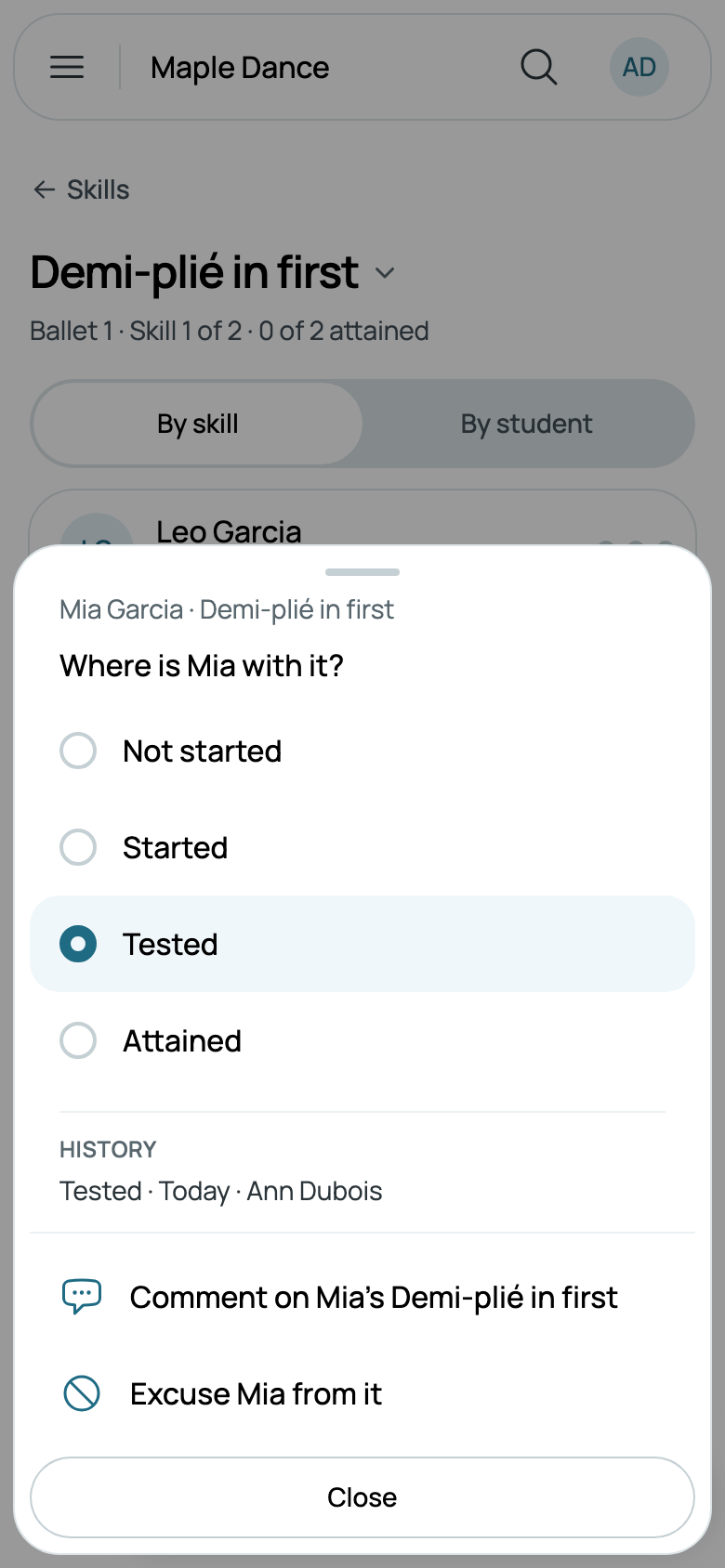
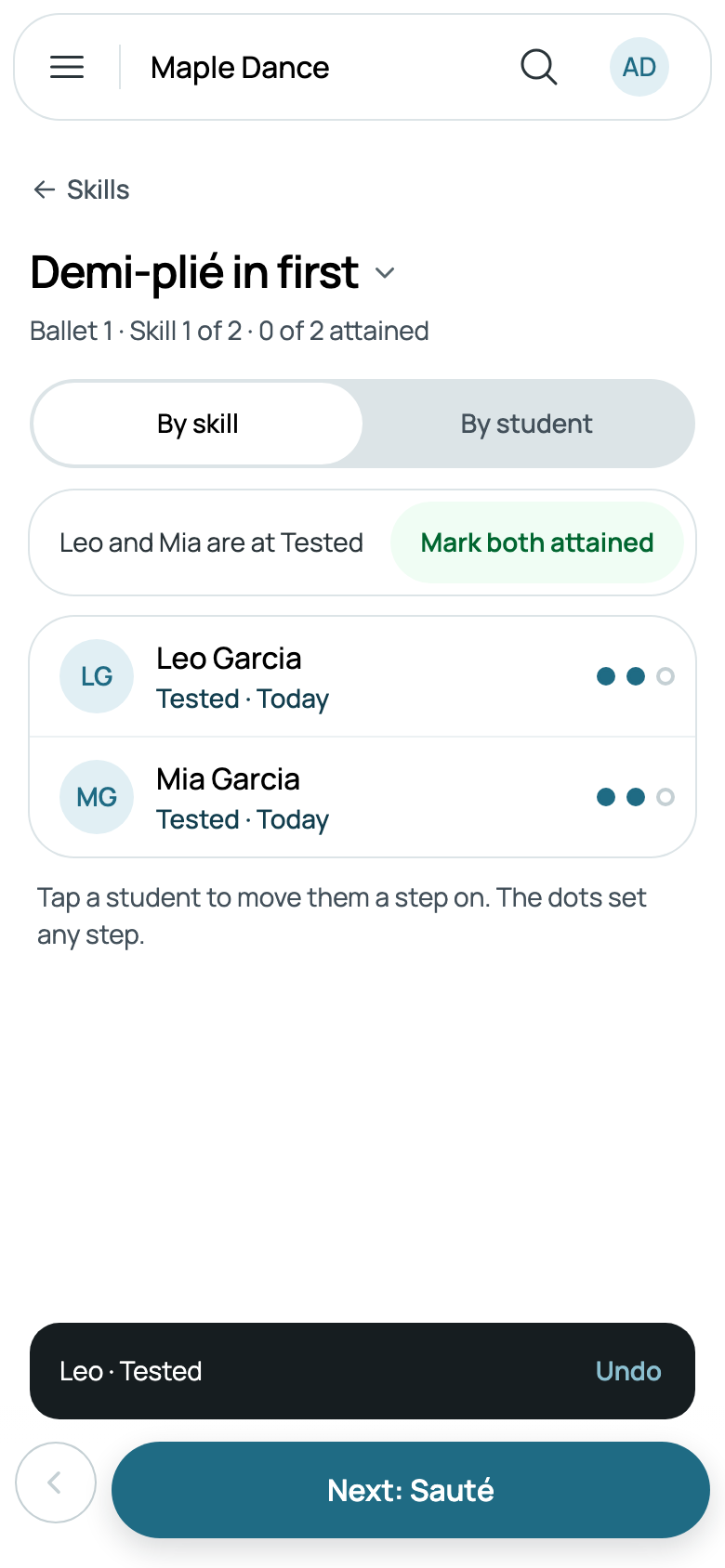
Tap a class to go through its skills one at a time. A tap on a student moves them a step on, with Undo. The dots beside them choose any step, show how they got there and who marked it, and have Comment on the skill and Excuse them from it. When several are at Tested, Mark both attained (or all of them) does it in one tap. Next: Sauté goes on to the next skill, the arrow back to the one before, and the skill's name lists them all, with how many have attained each.
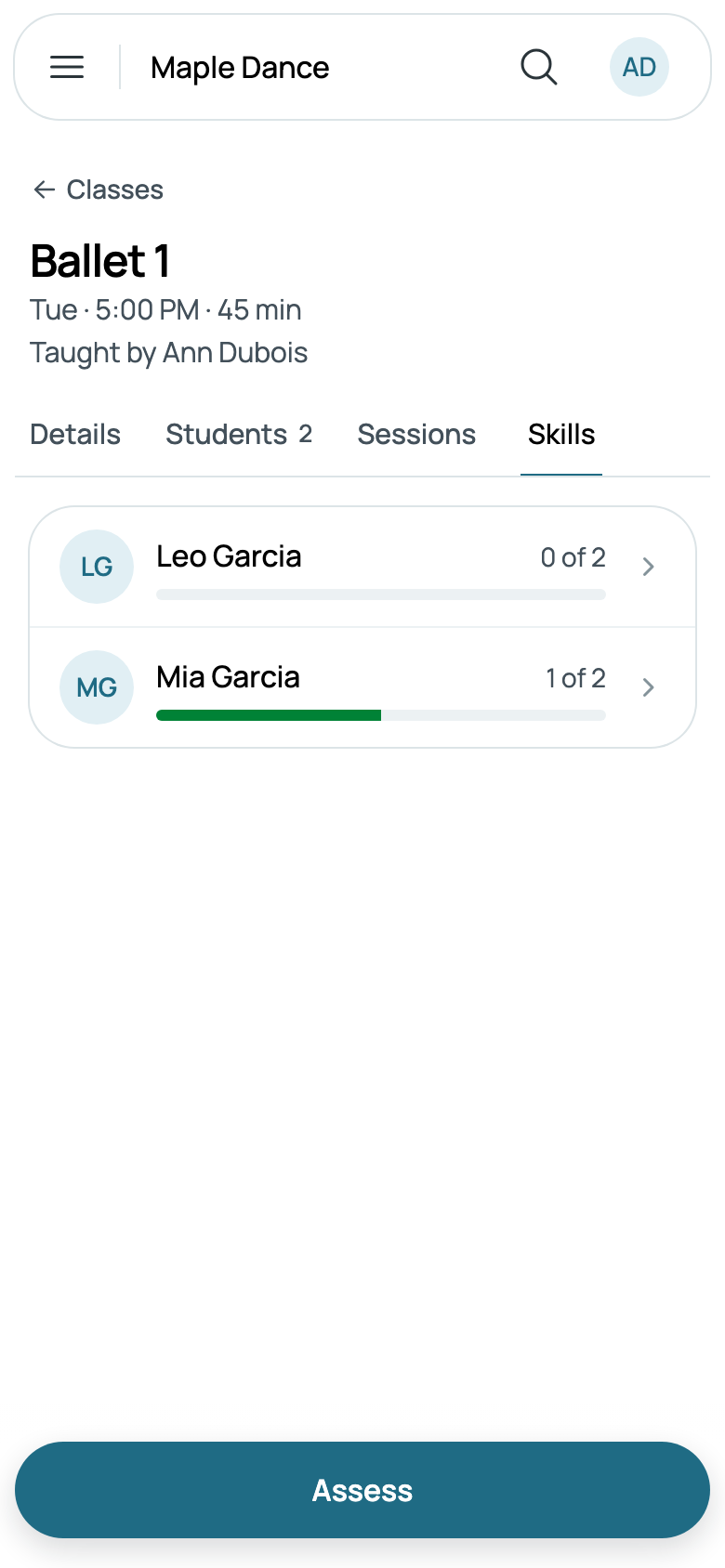
By student, at the top, has each student and how many they've attained instead. On a bigger screen, the skills sit beside the students. A class's own page has a Skills tab too, with each student and how far they are, and Assess.
A student's progress
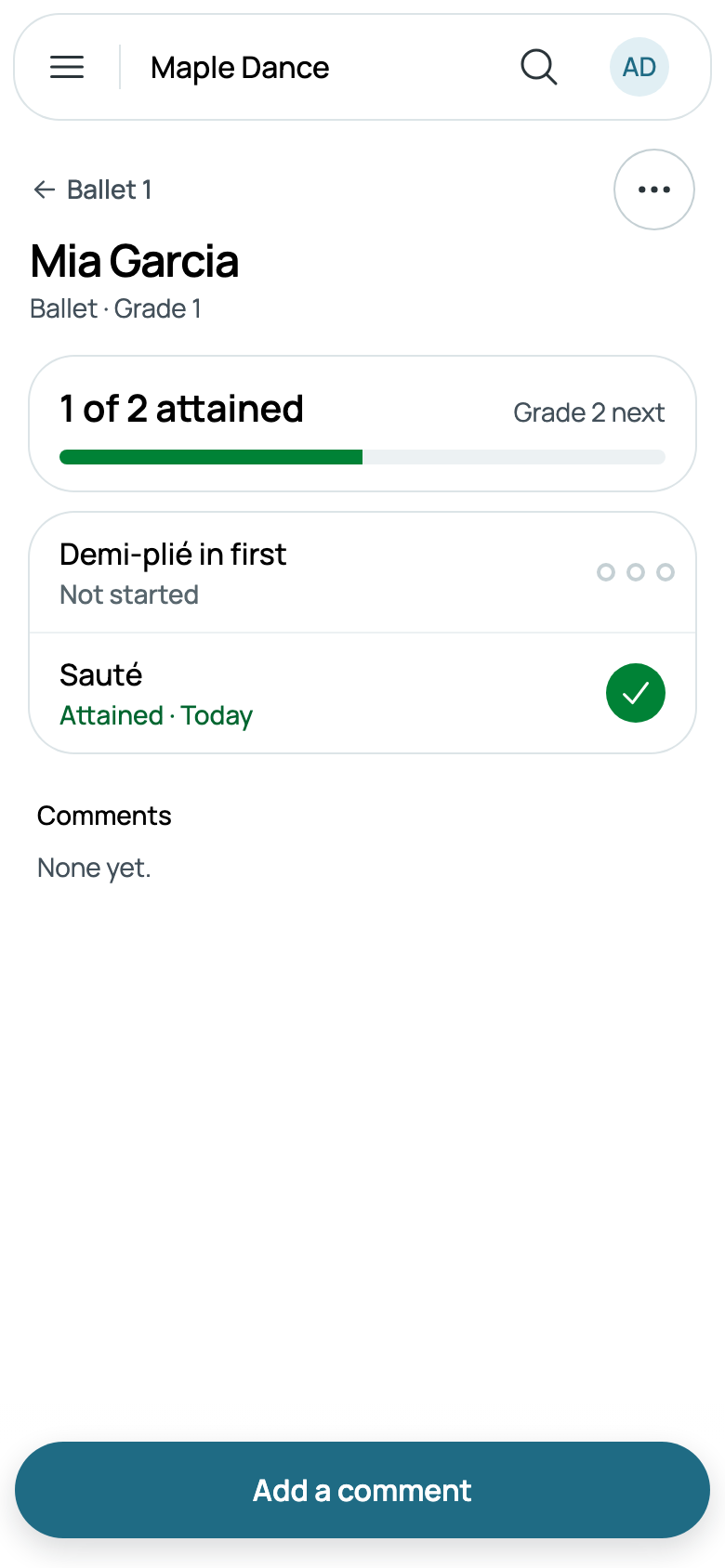
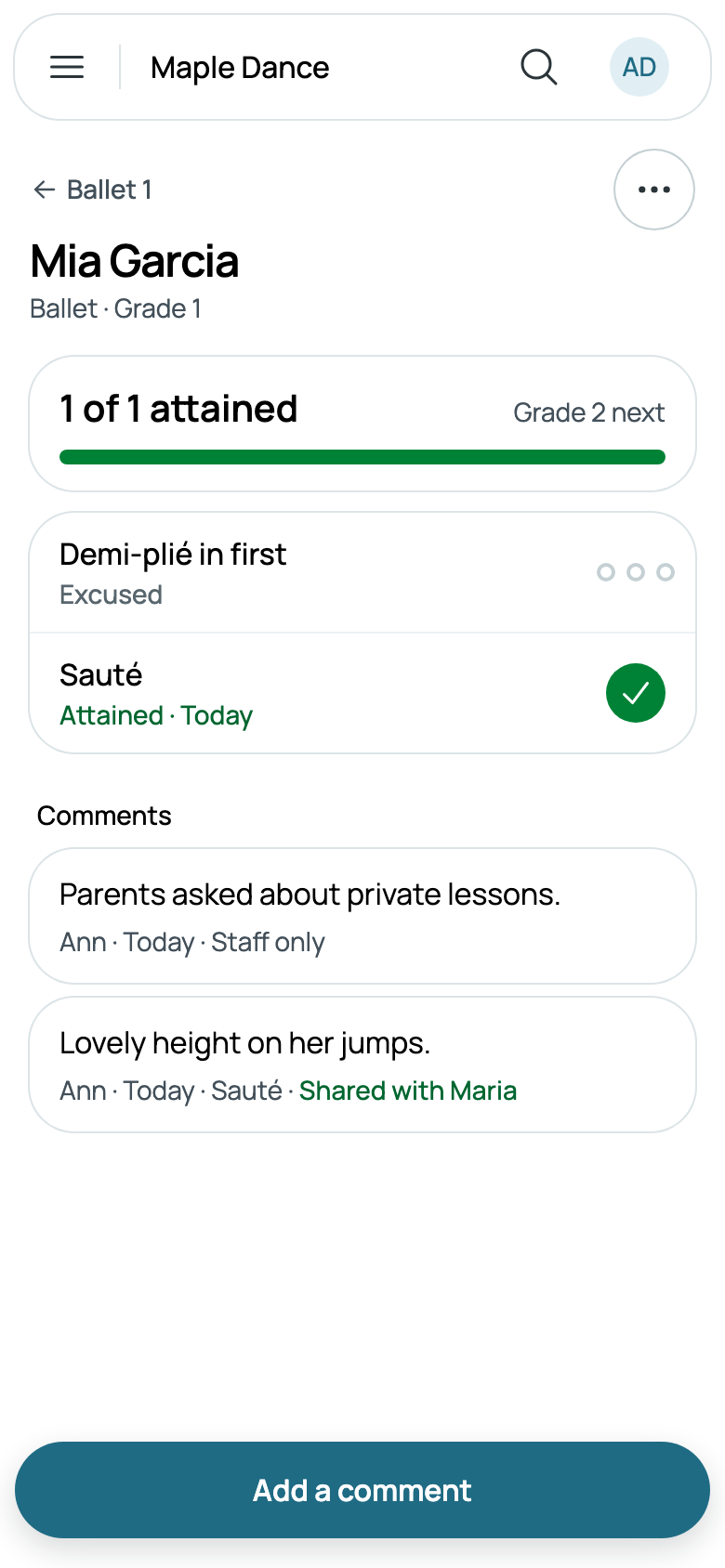
Tap a student for their level's skills, how many they've attained, and the level that's next. Their steps work as when assessing. A skill they're excused from, saying why, no longer counts; Count it again, under its dots, puts it back.
Add a comment, about them or one of their skills: Share with their family, or keep it Staff only. Under ⋯, Change level moves them up when they're ready; their class stays as it is. A student's own page has a Skills tab for each program, opening here.
A program has a Classes tab, its classes running now and in seasons to come, with Add a class in it. A level has its Classes, and its Students: those placed at it.
What families see
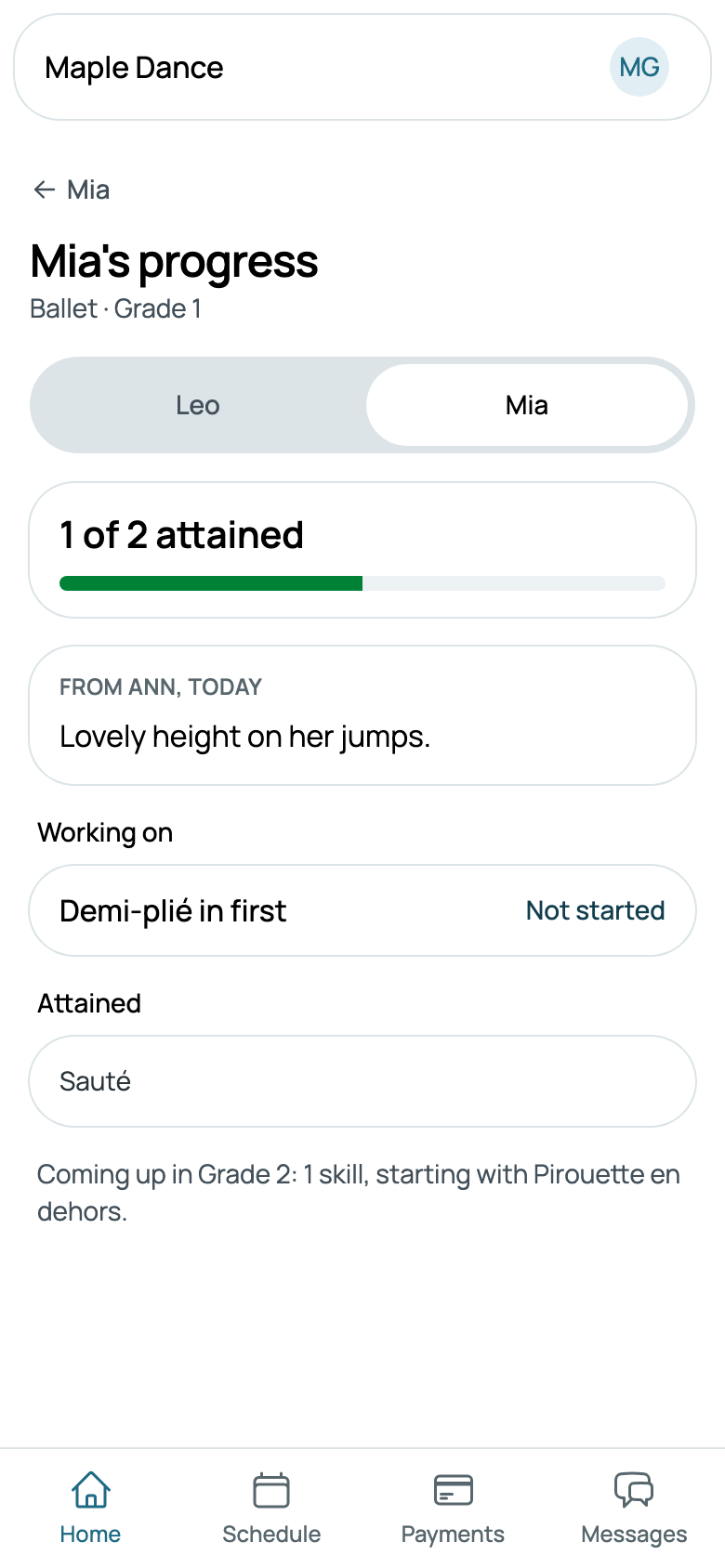
On Home, a child's page shows how far they are in each program, and a tap opens their progress: what they've attained, what they're working on, what's coming up at the next level, and the comments shared with the family, with each of their children a tap away at the top. When a child moves up, it says so, and what they attained before stays listed.