The registration form and policies
What you ask families about themselves and their children, and the terms and waivers you ask them to agree to. Both are set once, for the whole business, under Settings.
The registration form
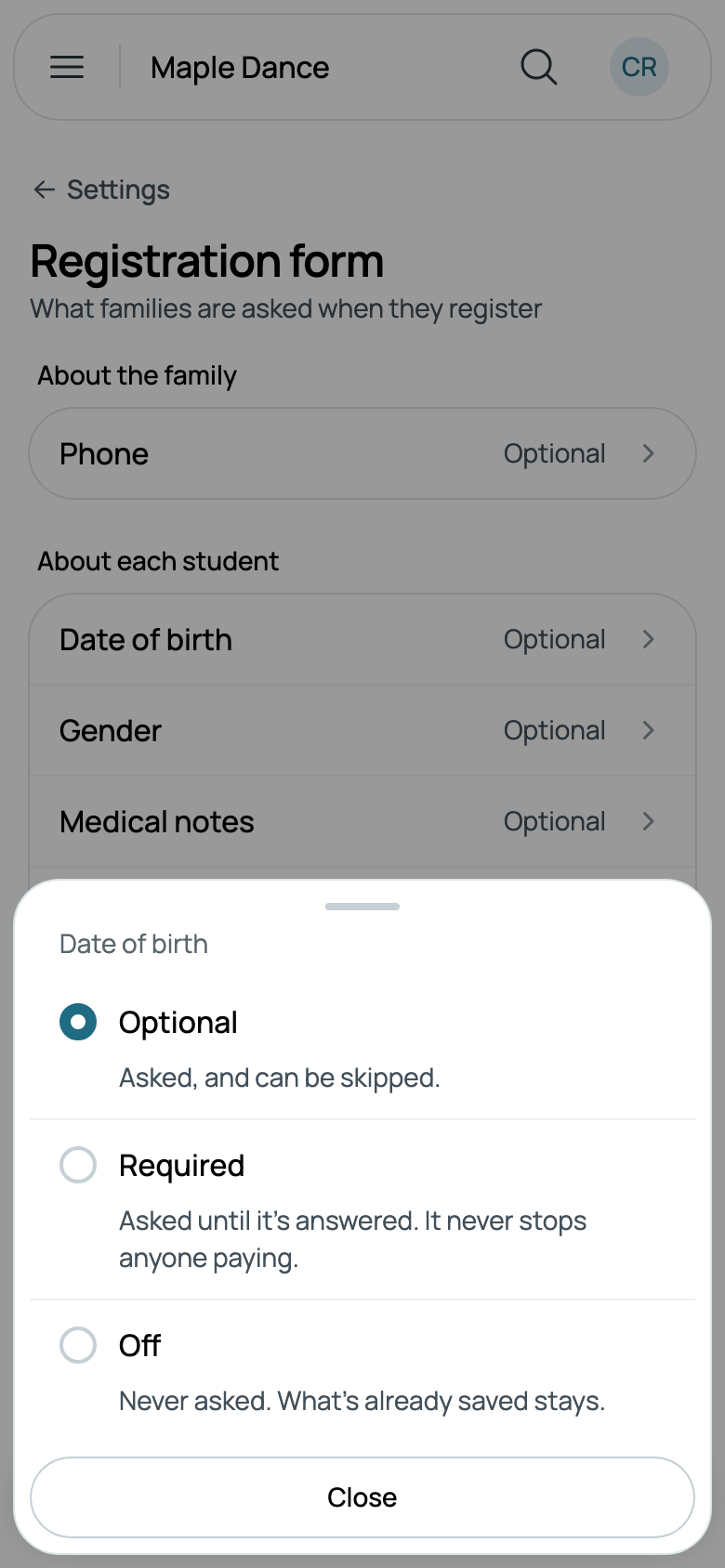
Go to Settings, then Registration form. It asks About the family, their Phone, and About each student: Date of birth, Gender, Medical notes, Photos and video and Emergency contacts. Each starts Optional. Tap one to choose how it's asked, and it's saved at once:
- Optional: asked, and can be skipped. A family answers the questions about itself whenever it likes from Your family's details on its Home, and each child's on that child's page.
- Required: asked until it's answered. It never stops anyone paying.
- Off: never asked. What's already saved stays.
Medical notes are only kept with a family's yes that your staff may read them, ticked the first time they write some: Staff may read these. On your team, only those who read medical notes see them (see Inviting staff).
Your own questions
Add a question asks something of your own, such as a T-shirt size or how they heard about you.
- Choose who it's about: Each student, which is each child and each adult who takes part themself, or The family.
- Write the Question, and choose the Kind of answer: Short answer, Yes or no, Pick one, with its choices one to a line, or A date.
- Turn on Required to ask it until it's answered, even after paying, and tap Add question.
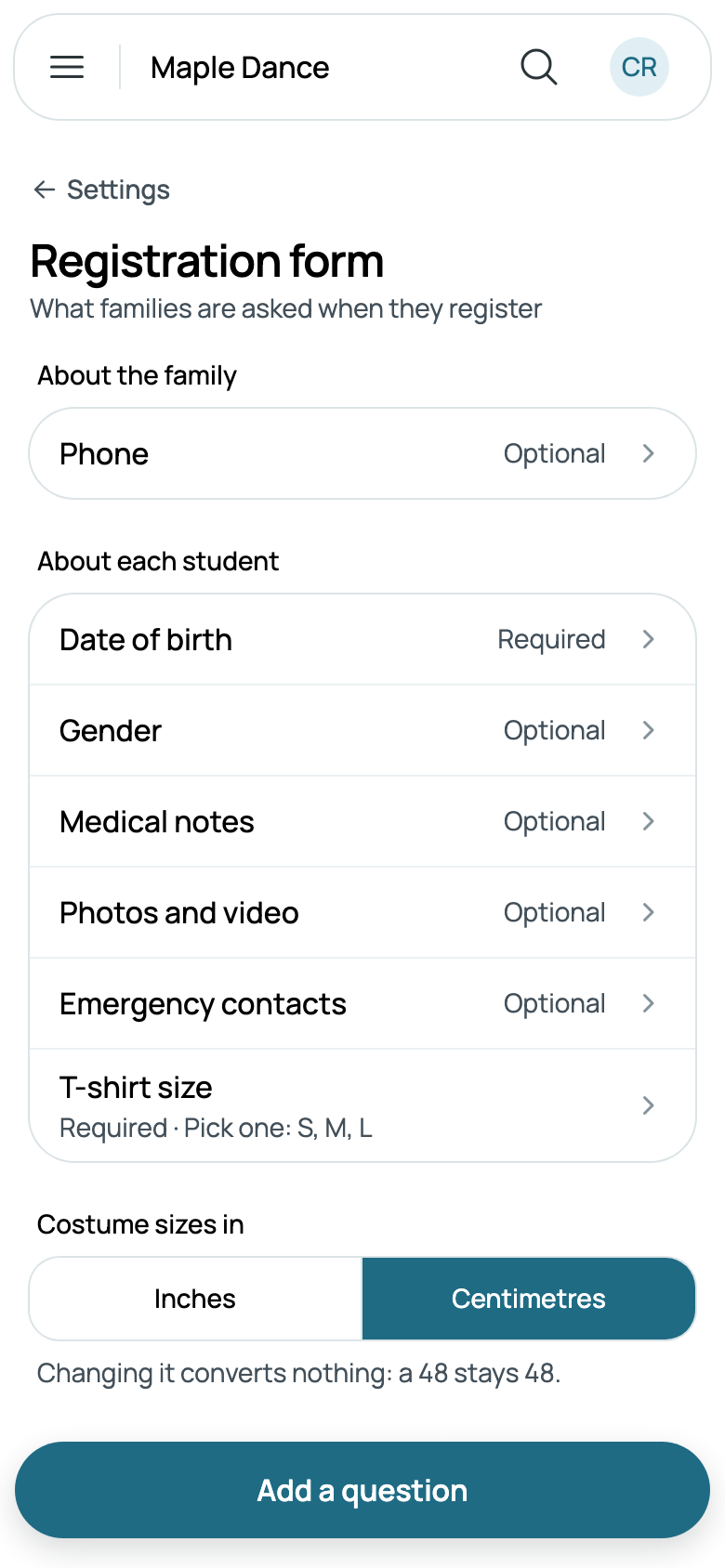
Your questions follow the others about the family or each student, each saying how it's asked, such as Required · Pick one: S, M, L.
Tap a question to change it. Once someone has answered it, who it's about and its kind of answer stay; its words, its choices and Required still change, and the answers already given stay as they were. To ask something else, add a new question. Delete question, at the foot of its page, stops asking it, and keeps the answers already given.
Costume sizes
Costume sizes in, at the foot of the form, is Inches or Centimetres: the unit each student's measurements are taken in. Changing it converts nothing: a 48 stays 48. Their sizes are on each student's page (see A family's page).
How families answer
Paying never waits on the form. Once a family has registered, if something required is still unanswered, they're told Maple Dance has a few questions before the first class., with Finish registration. A card on their Home stays until it's all answered: the family's questions first, then each child in a class, each saying what's Still needed. A child in no class isn't asked.
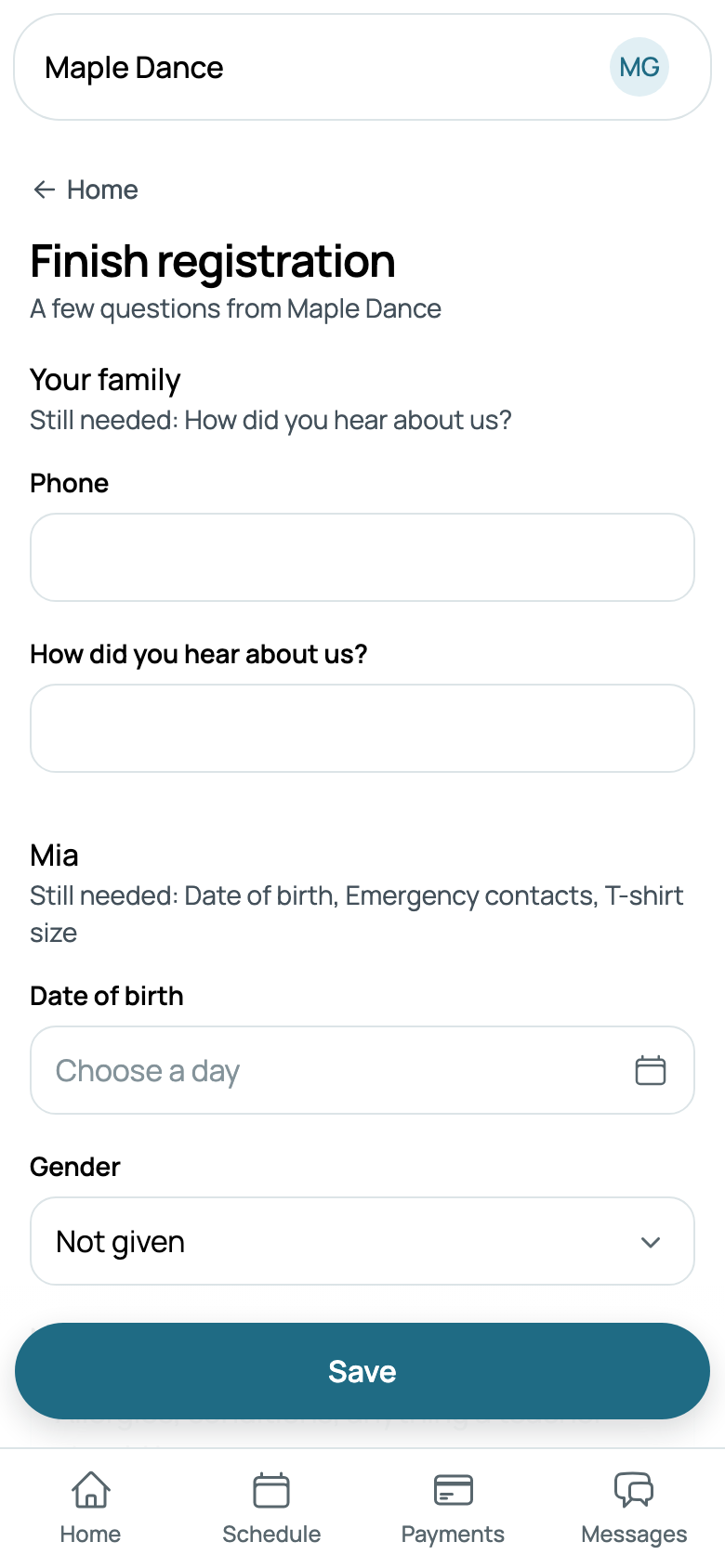
Each child's Details, in the family's portal, has the questions about each student, to answer or change when they like. Your team fills in the same from a student's page, with Edit, and What to know there says what's required and Not answered yet.
While you text families, a box under the phone, never ticked to start, asks for their yes to your texts: Text me about classes, changes and bills. See Your texting number.
Policies and waivers
Your terms, a photo consent, a liability waiver: anything you'd like families to read and agree to. Go to Settings, then Policies, and tap New policy.
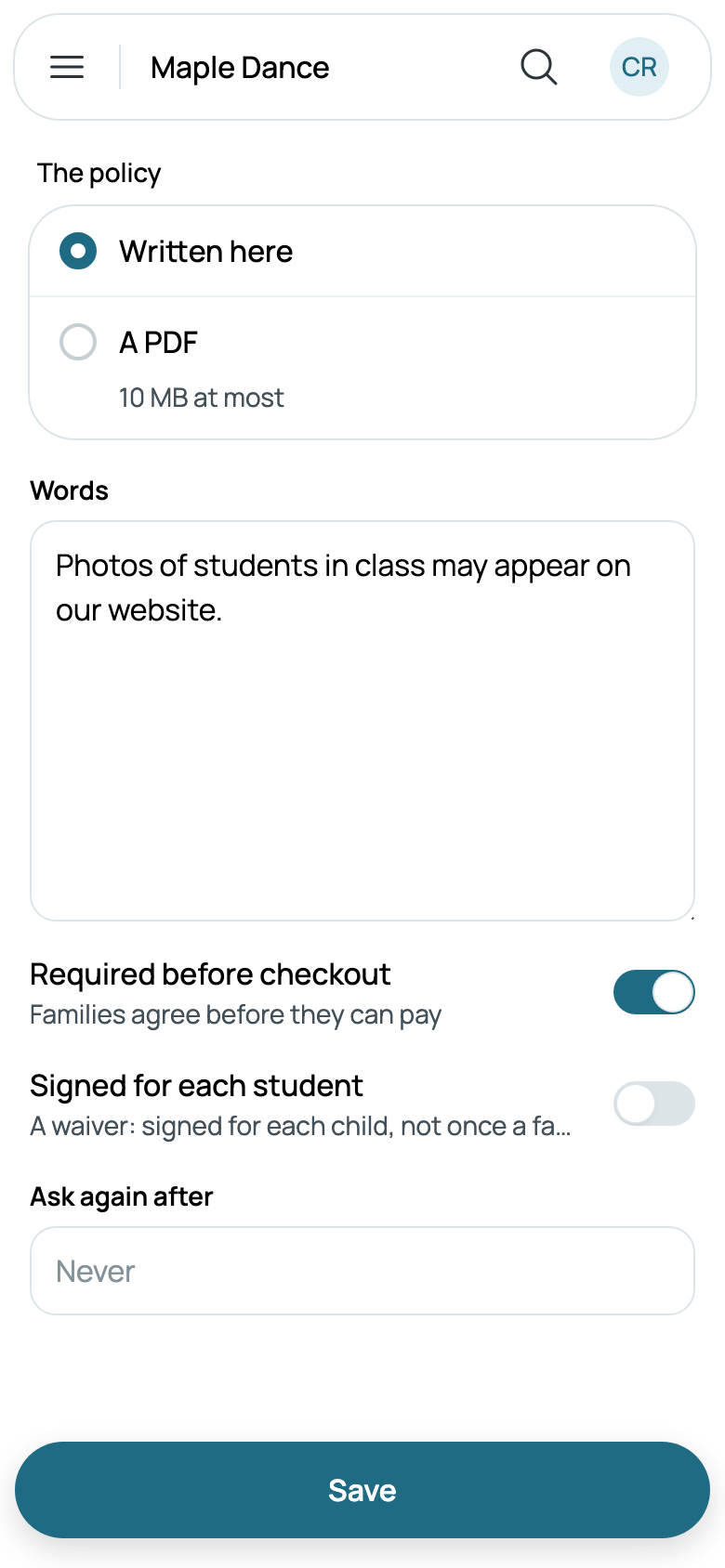
- Give it a Name, such as Terms 2026–27, and a Description, what it covers in a line, which families read with it.
- Under The policy, choose Written here and write its Words, or A PDF of 10 MB at most.
- Choose how it's asked, and tap Save:
- Required before checkout: families agree before they can pay. Otherwise it waits on their Home, and never holds anything up.
- Signed for each student: a waiver, signed for each child, not once a family.
- Ask again after: a number of months, after which they agree again. Left empty, they never are.
Each family's account holder agrees once, for all their children, unless it's signed for each student. Another adult who shares the family and signs in on their own agrees for themself. Your team is never asked.
Changing a policy's name or description asks no one again. New words or a new PDF is a new version, and the form says so: A new version: every family agrees to it again. What each family agreed to stays with the version they agreed to. Delete policy, at the foot of its form, stops asking; what families agreed to stays on record.
Who has agreed
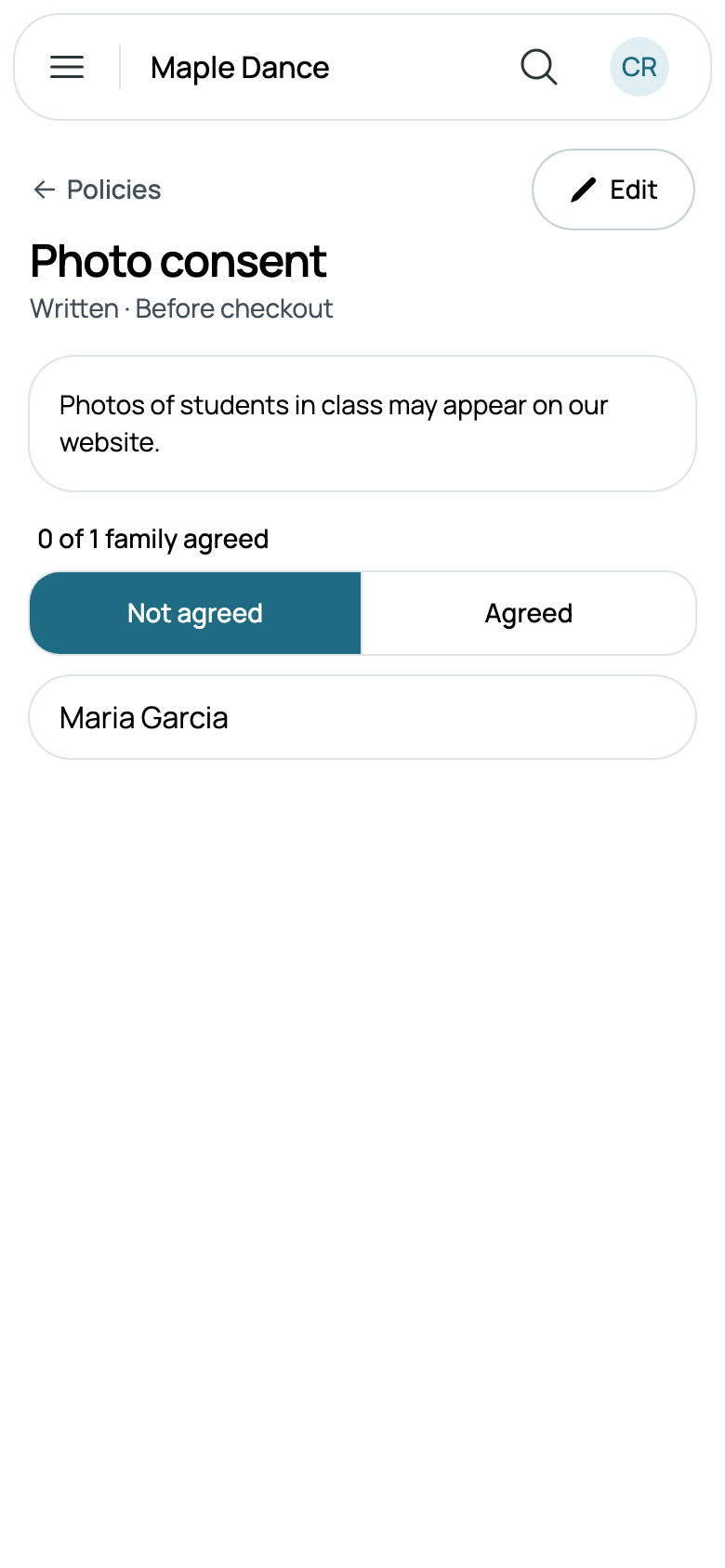
Tap a policy for its words or its PDF, and how many have agreed: 0 of 1 family agreed. Not agreed lists the families who haven't, by name, and Agreed each agreement, the newest first, with who and when.
On a class's Students, a child without a waiver signed for them says No waiver, so you know before their first class.
What families see
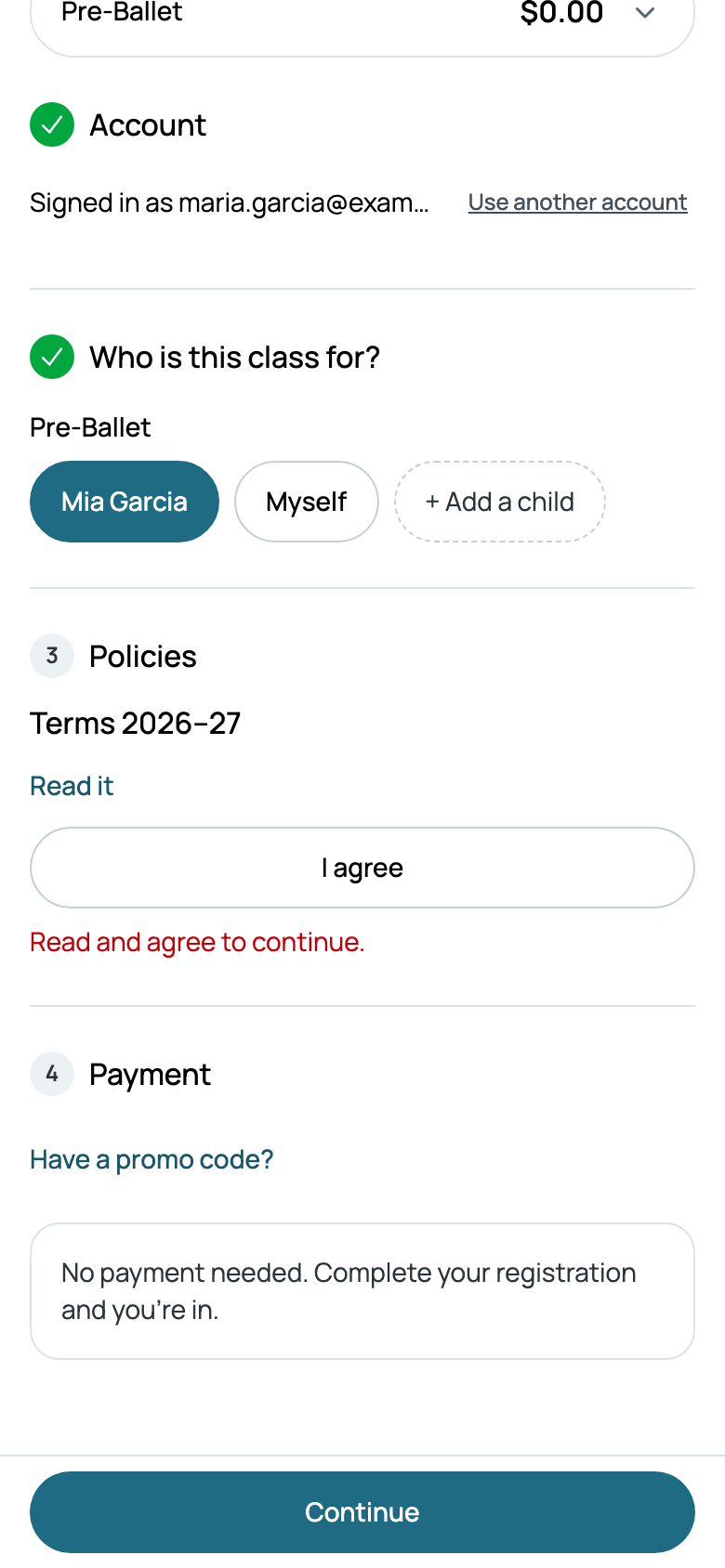
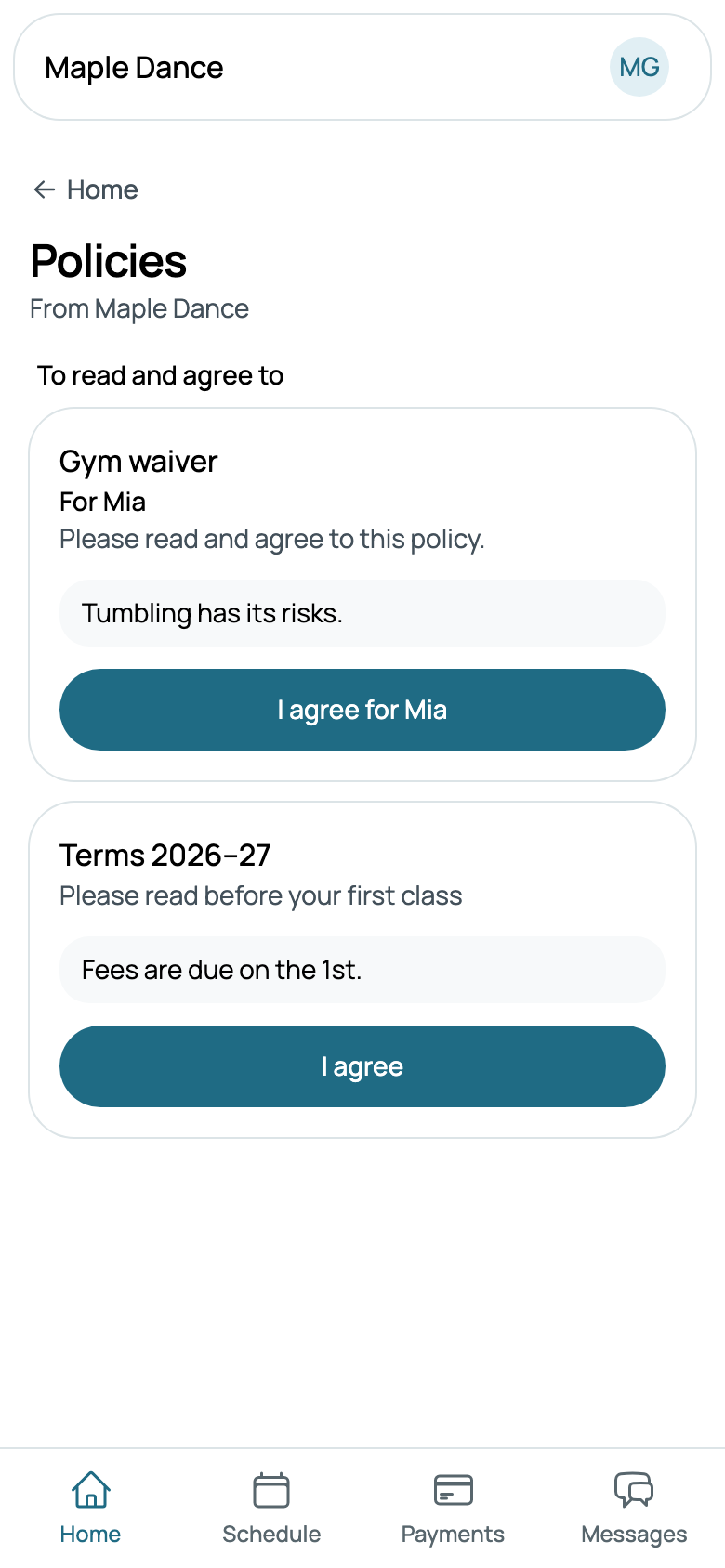
While something waits, a family's Home has Policies to agree to, with Read: each policy's words, or its PDF, with I agree, or I agree for Mia for a waiver. Once agreed, it's under Agreed, with its date, and opens as it was when they agreed; Policies you agreed to, under their family on Home, brings them back to it.
A policy required before checkout is a step on the way to paying, after who each class is for: Read it, then I agree. Until they do, Continue brings them back to it, saying Read and agree to continue., and nothing is paid.