A family's page
Everything about one family in one place: its adults and how to reach them, its children, what it has said yes to, your notes, and what it owes and has booked.
Finding a family
Open a child from Students, then Family page, beside their family. A family who signed up but hasn't added anyone yet is under Families with no students yet, at the foot of the list. Where you don't enrol students, as at a salon, they're your Clients, each opening straight to their page.
Details comes first, then Students, a tab for each kind of booking you offer, and Bills, for those on your team who see billing. Message writes to them (see Your inbox), and Edit changes the account holder's name and phone. Their email is how they sign in, so it isn't changed there.
The adults
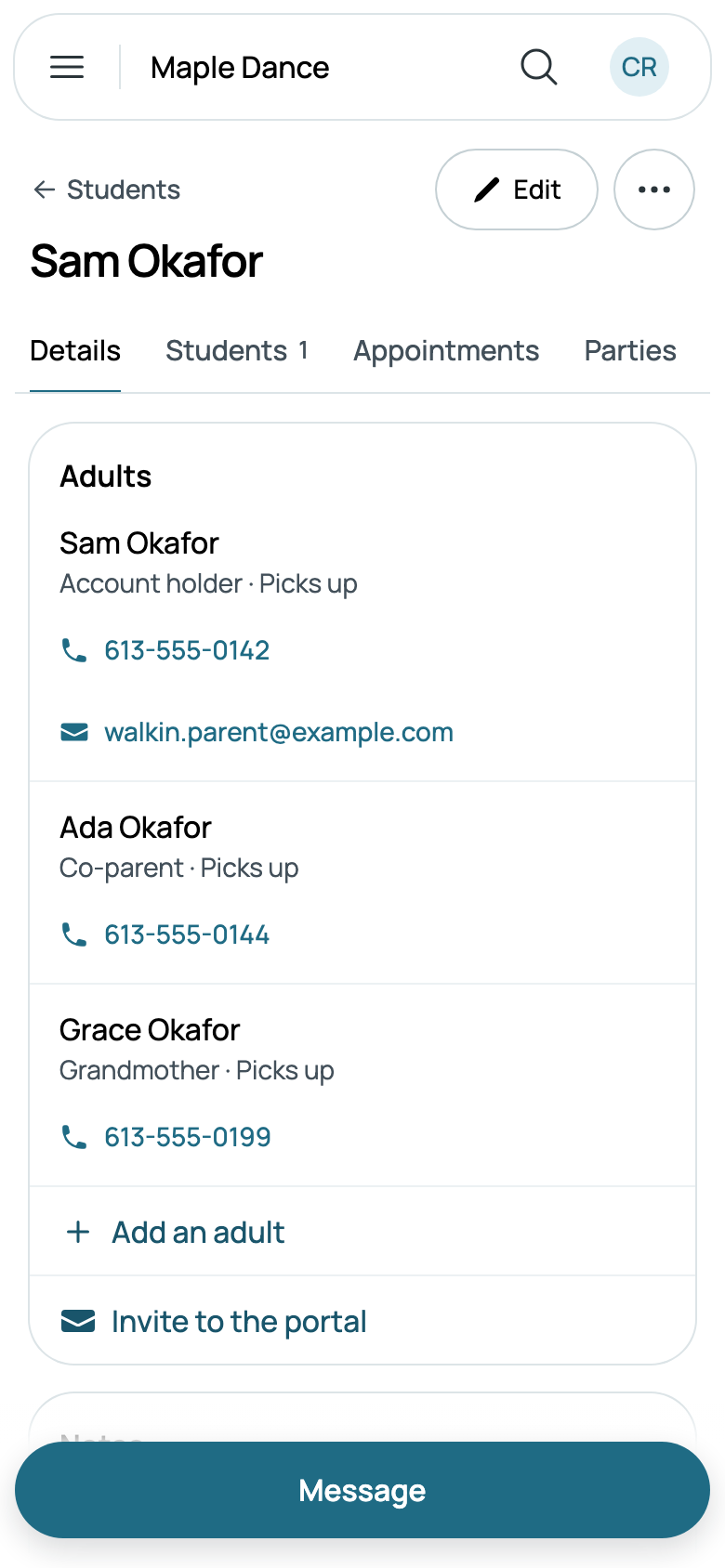
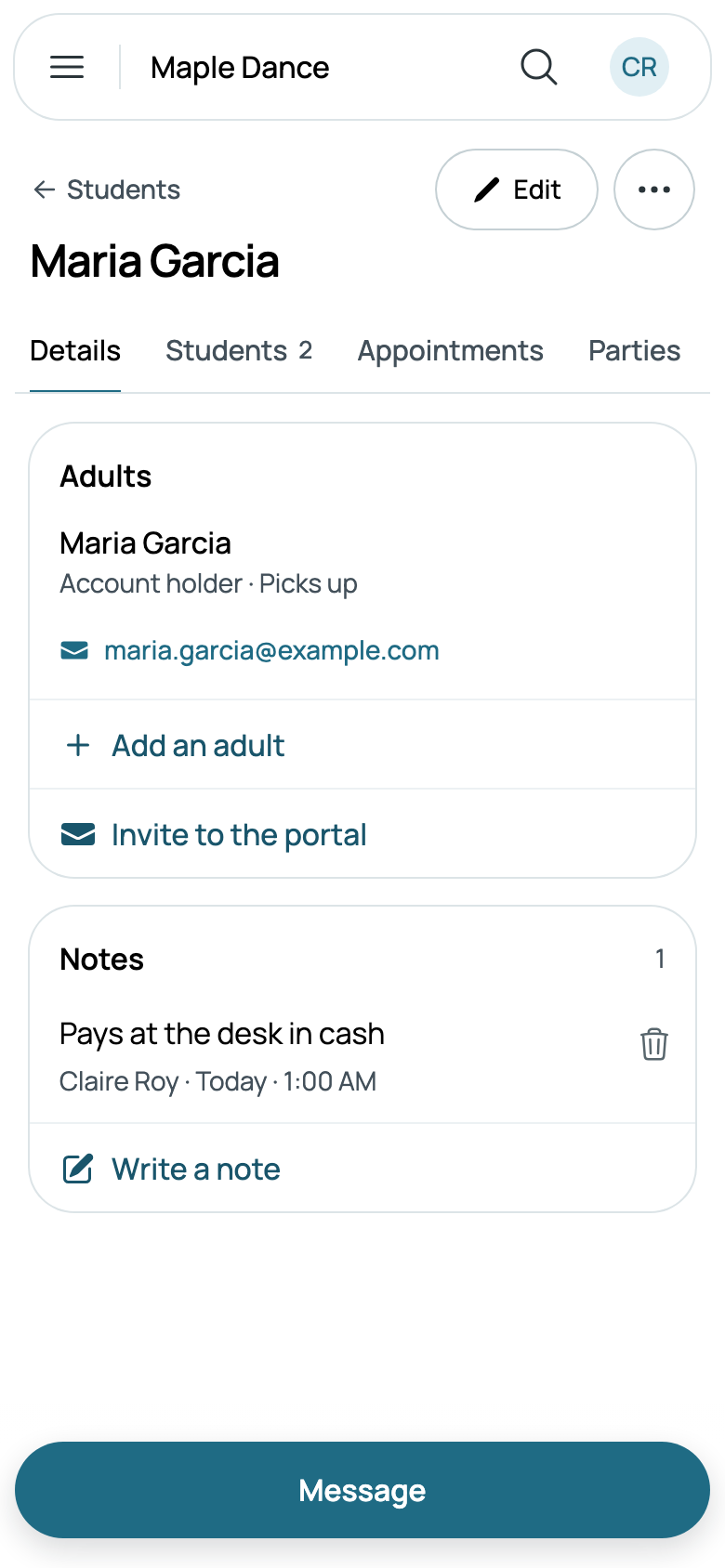
Adults lists the account holder first, then the family's other adults, each with how they're related and whether they pick up, and their phone and email, a tap to call or write.
Add an adult adds a co-parent, a grandparent or a nanny: their name, How they're related, their phone, and their email if they have one. Can pick up the children starts on; turned off, they read Doesn't pick up, in red, here and on each child's page. Tap an adult to change them, or Remove from the family, at the foot of their page; their own account here, if they have one, stays.
Their portal
Every family has a portal on your website, where they register, pay and write to you. A family who signs up online is in already. One you add yourself, with their first child, is invited as you add them: Invite them to the portal starts on, and emails them a link, which works for 7 days. It opens their welcome, with their name and a password if they'd like one.
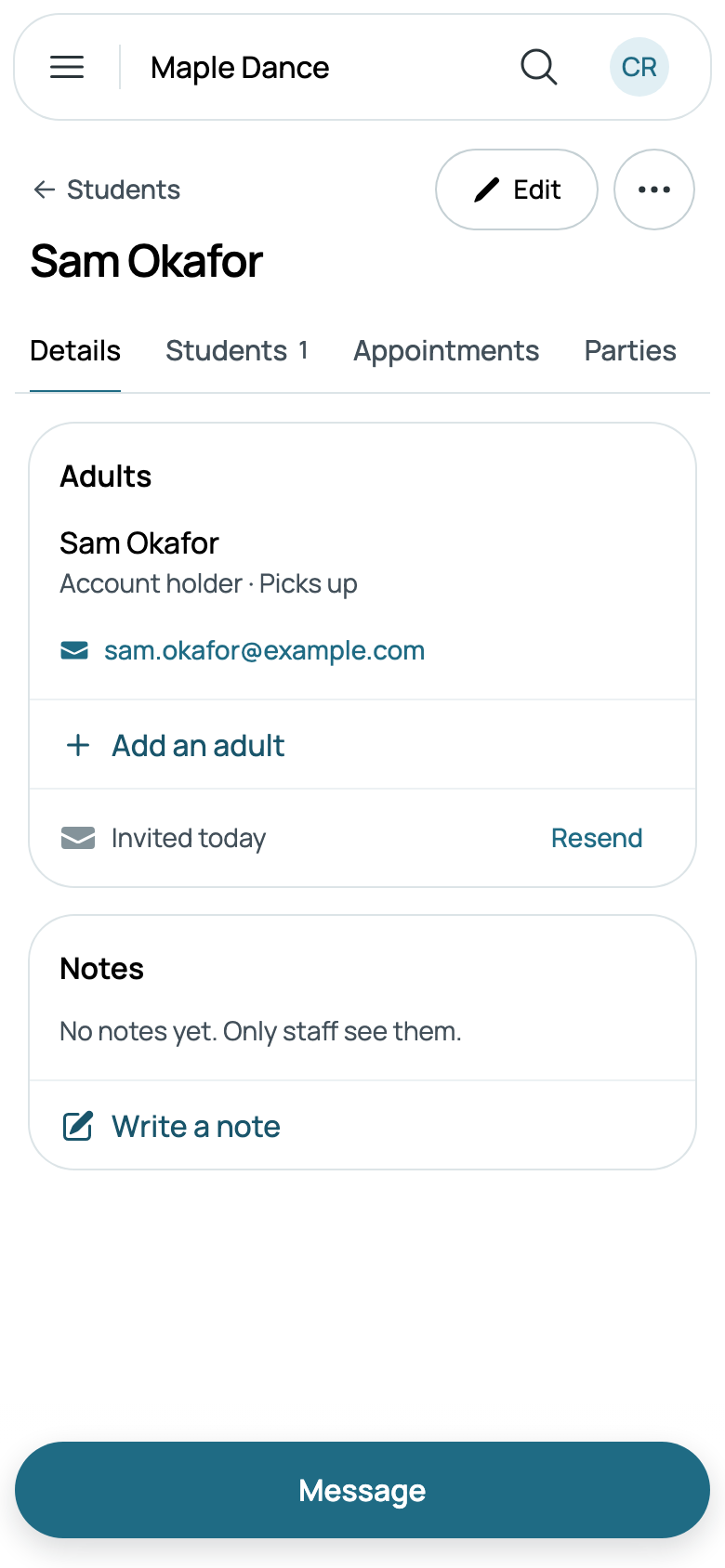
Until they first sign in, their page says when they were invited, Invited today, with Resend, each new link replacing the last. A family you added without an invitation has Invite to the portal instead.
Sharing with another adult
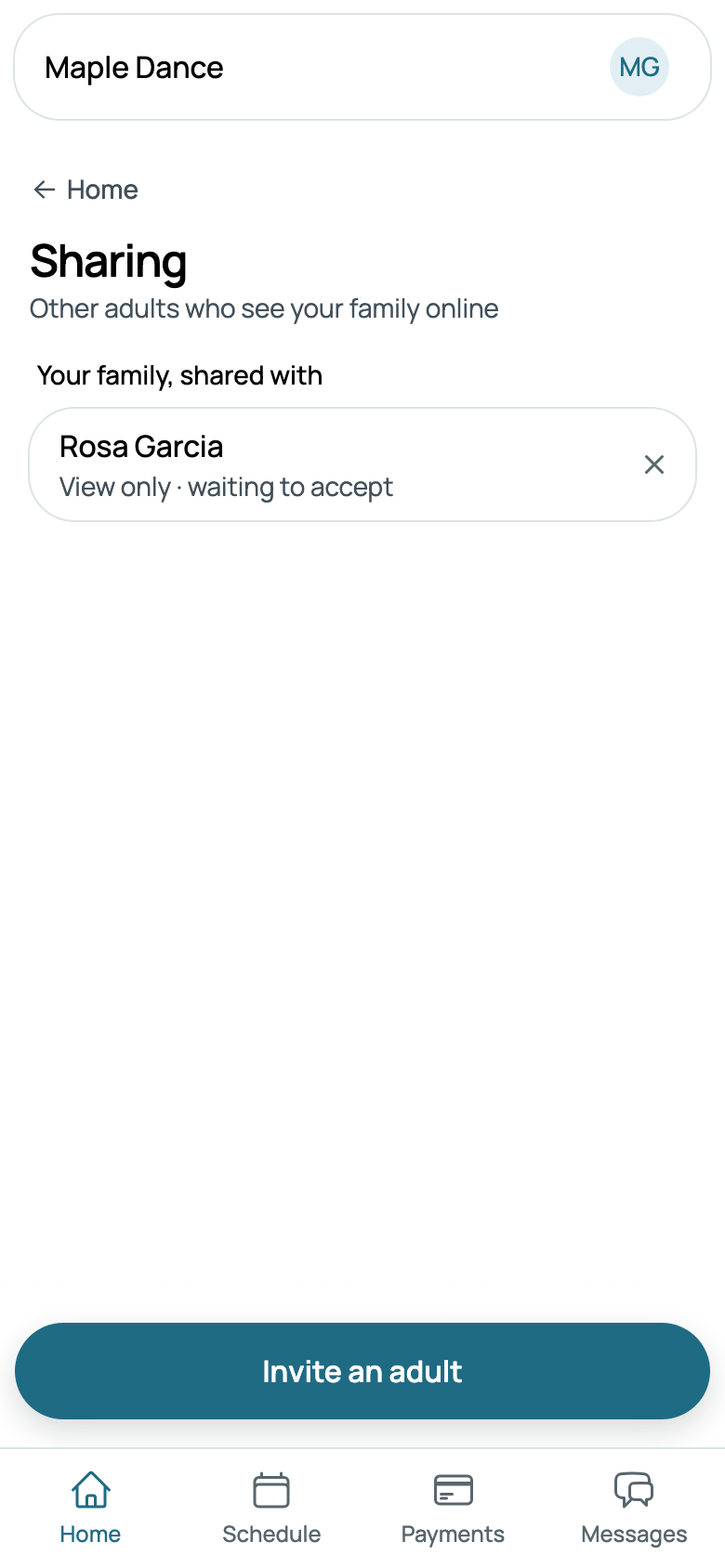
A family shares their portal from their Home: Share with another adult, then Invite an adult, with their name, their email, and what they can do: Full access, everything the family can do, paying included, or View only, their classes, attendance and bills, to look at. The adult is emailed a link that works for 7 days. The family can stop sharing, and the adult can leave.
An adult the family shares with is one of its adults on their page too: tap them to say whether they pick up. With full access, they hear what the family hears.
What they've said yes to
Receipts, reminders and messages always go by email, whatever they've said. While you text families, Texts and emails says, for each adult, whether they said yes to Messages by text, how and when, such as Yes · sign-up form · Oct 1, 10:02 AM, or Not asked. An adult with no phone reads No phone number · Add one. While you send news, Texts and emails also says whether each adult said yes to it.
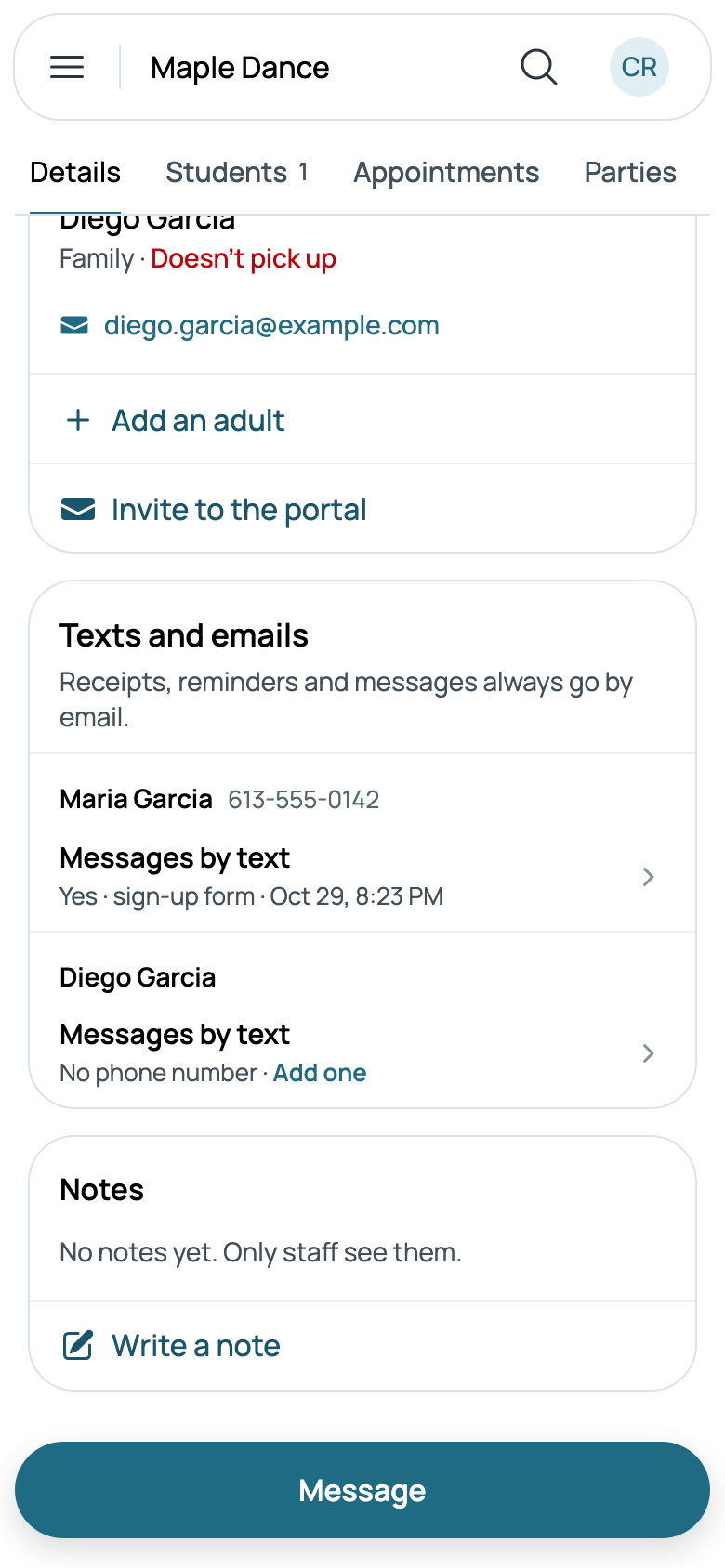
Tap a row for its history, the newest first. Someone who asks you to stop, in person, on the phone or in writing: say how, and tap Record a no. A yes to your texts, heard in person or on the phone, is recorded there too: read them what they're saying yes to, then Save. Families change theirs in their portal: Messages, then Texts and emails. A yes to news only they can give, on a form or in their portal.
Notes
Notes are your team's: families never see them. Write a note on a family's page, and it's about the whole family, showing on each of their children's pages too, marked Family there. On a child's page, a note is about Just Mia, or The whole family. Each says who wrote it and when, the newest first, with Earlier notes under them.
Notes can't be changed, so a note that's wrong is deleted, with the bin on its row, and written again. Whoever wrote it can delete it, and so can anyone whose roles change Students and families.
The children
Students lists the family's children, with their ages, and Add student adds a brother or sister to the family. A child removed by mistake is listed with Bring back.
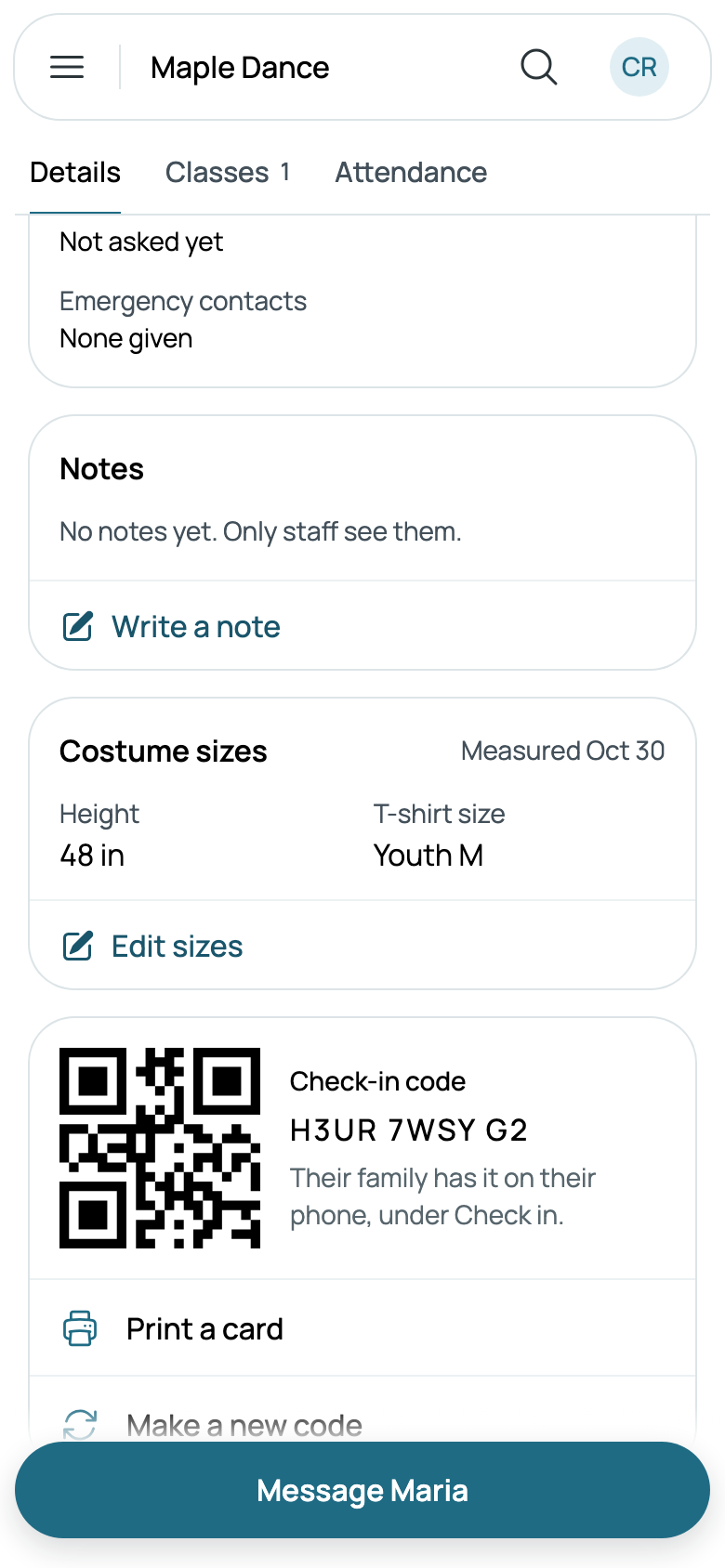
A child's own page has their family, what their family owes, What to know, your notes, their costume sizes and their check-in code (see Taking attendance). What to know is their medical notes, photos, your own questions and their emergency contacts, as the registration form asks them.
Costume sizes says when they were Measured, and Edit sizes takes them: height, chest, waist, hips, inseam, neck and girth in your unit, and shoe and T-shirt sizes as they're written. A bra size is asked from 12. Families can fill them in too, under their child's Details. For an order, Download costume sizes, on a class's Students, is a spreadsheet of everyone's.
Bills and bookings
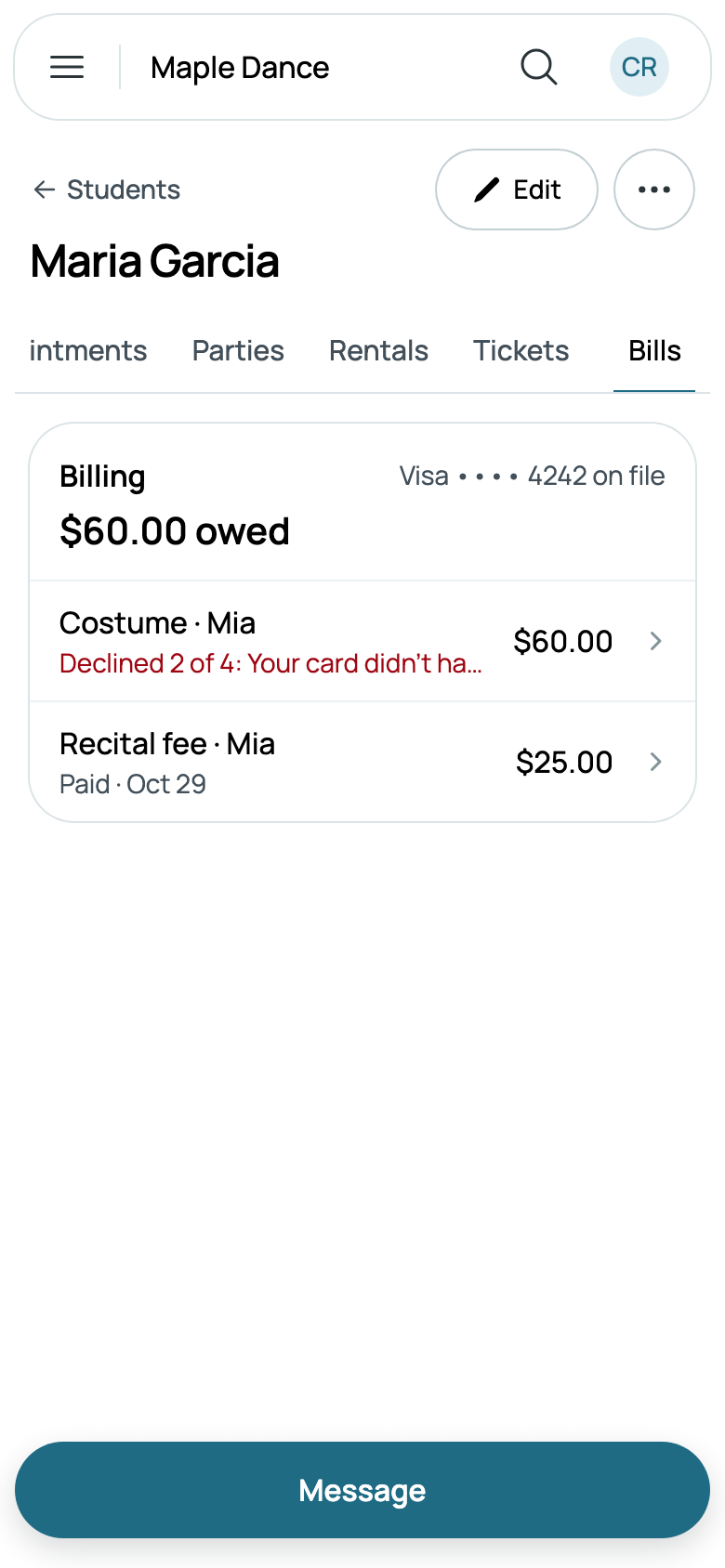
Bills says what the family owes, such as $60.00 owed, or Nothing owed, any credit they have, the card on file, and each bill, saying where it stands. Tap one to open it, and its back arrow comes back here (see Cards, deposits and instalments). Each child's page shows the same. On Details, Packs and plans lists the class packs and monthly plans they hold.
Appointments, Parties, Rentals and Tickets, where you offer them, list what they've booked: what's Coming, then the Past, with Show more. Each opens the booking. Book appointment, Book a party or New rental, on its tab, books them another and comes back here.
The owner's ⋯ on a family's page downloads what's kept about them, holds their records, or erases them when they ask (see Your data).
What the family sees
A family signs in on your website, from My account in its menu, and lands on Home: what's due, with Pay; Finish registration and Policies to agree to while either waits; your news; their classes, camps and bookings, each with when it's next; and Your family, each child a tap from their page, with Your family's details (what you ask about the family itself) and Share with another adult. On a phone, Home, Schedule, Payments and Messages are along the bottom (see What families see).
To see it as they do, switch to customer mode from your menu (see Signing in, and seeing what families see).